

To add product filters in Shopify, install Shopify's free Search and Discovery app, choose the filters you want (such as availability, price, product type, vendor, size and colour), put them in a sensible order, then check they appear on your collection and search pages. Your theme needs to be an Online Store 2.0 theme with filtering turned on. This guide walks through each step and the extras that make filters work harder.
Why product filters matter
Shoppers who can narrow a collection by size, colour or price find what they want faster, and people who find the right product are far more likely to buy it. Without filters, a collection of 80 products means a lot of scrolling, and on a phone most people give up. Filters also help stores that sell for different needs, such as different sizes, styles or vehicle models.
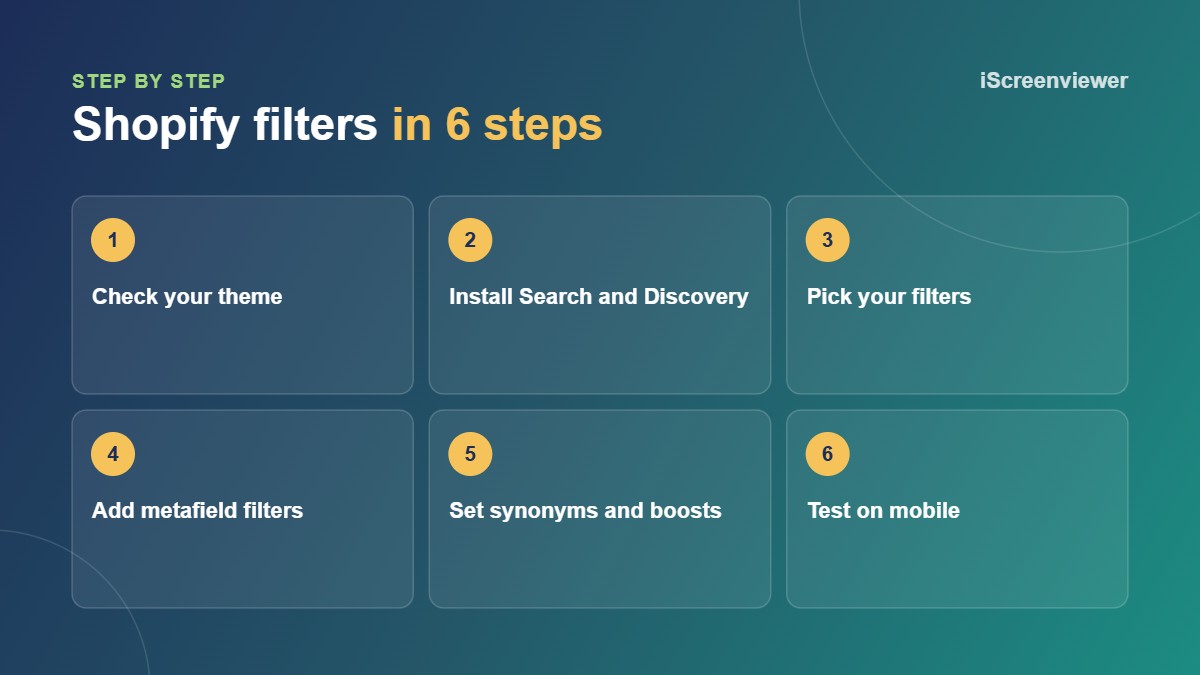
1. Check your theme supports filtering
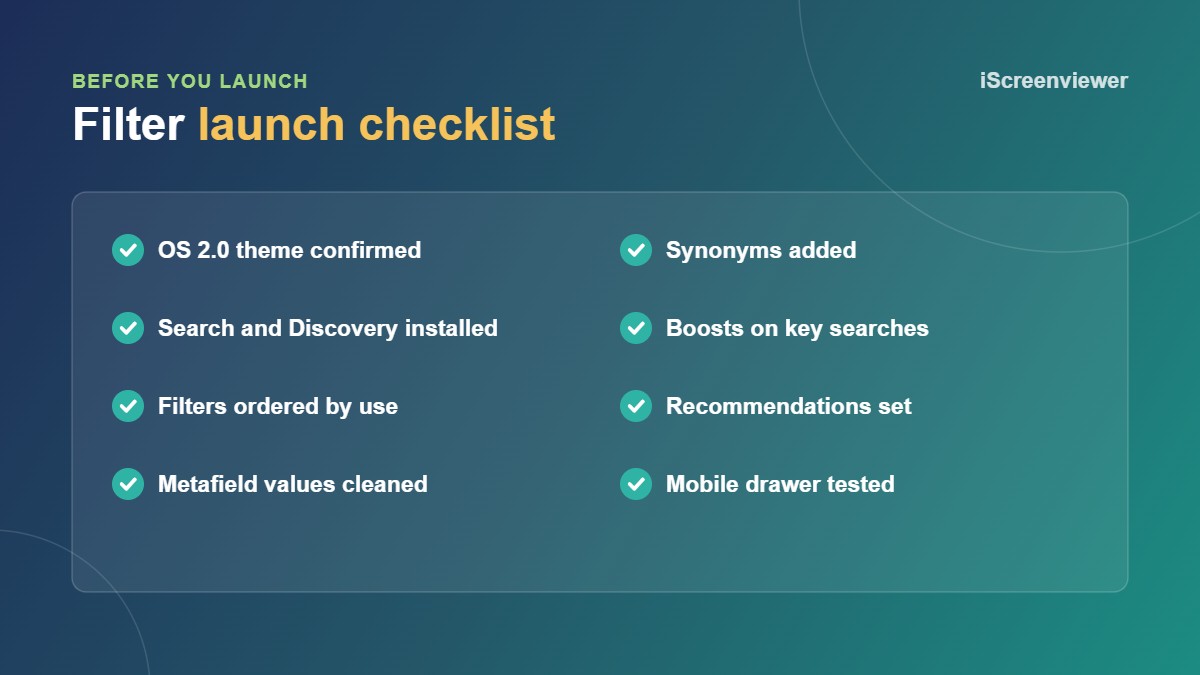
Shopify's built-in filtering works with Online Store 2.0 themes, which includes Dawn and most themes released since 2021. In the theme editor, open a collection template and look for a filtering setting in the product grid section. If your theme is older and has no filter options, you need a theme update or a third-party filter app. See Shopify Theme Upgrade to Online Store 2.0.
2. Install the Search and Discovery app
Search and Discovery is made by Shopify and is free. Once installed, it becomes the place where you manage filters, search synonyms, product boosts and product recommendations, all from one screen.
3. Choose the right filters
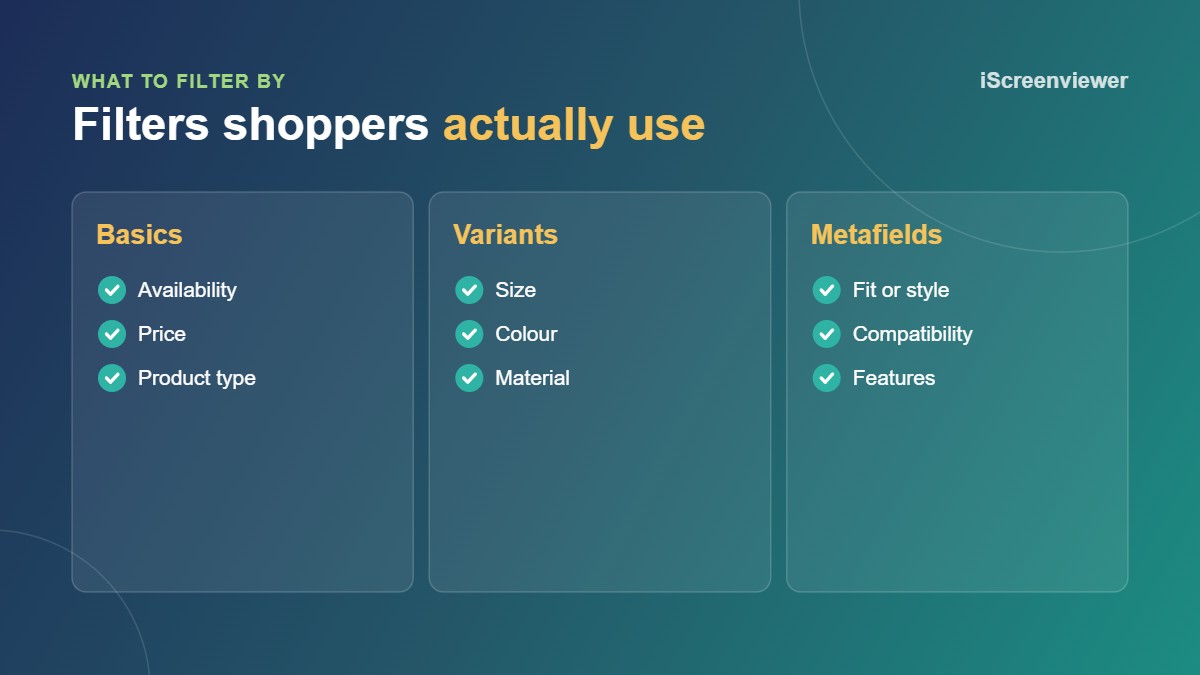
Start with what your customers actually choose between. The most common filters are:
- Availability, so shoppers can hide out of stock items
- Price
- Product type
- Vendor or brand
- Variant options such as size, colour and material
- Tags, if your tags are clean and consistent
Keep it to the filters people use. Six useful filters beat fifteen that confuse. Put the most used filter, often size or price, at the top.
4. Use metafields for custom attributes
If you want to filter by something that isn't a variant, such as fit, compatible model or features, store it in a product metafield first. Once the metafield has values, you can add it as a filter in Search and Discovery. Clean data matters: if some products say "Blue" and others say "blue", shoppers see two options. See Shopify Custom Metafields and Metaobjects Setup if your products need this data added.
5. Add search synonyms and boosts
Synonyms help search understand your customers' words, so a search for "thongs" also finds "flip flops", or "tee" finds "t-shirt". Product boosts push best sellers or high margin products to the top of search results. Check the search terms in your Shopify analytics to see what people search for and which searches return nothing.
6. Set up product recommendations
The same app lets you choose related and complementary products for each product page. Complementary products work well for accessories, refills and add-ons. Your theme needs a related or complementary products section on the product template to show them.
7. Test on desktop and mobile
On mobile, filters usually open in a drawer. Check that it opens easily, that the product count updates, and that clearing filters works. Try each filter on a few collections, and check that out of stock products behave the way you want.
Common filter problems
- Filters not showing: filtering is turned off in the theme editor, or the theme doesn't support it.
- Duplicate values: inconsistent variant or metafield values, such as "Navy" and "navy".
- A filter missing on some collections: Shopify only shows filter values that products in that collection have.
- Too many options: dozens of colour names that are better grouped into a simpler colour metafield.
Filters help shoppers, but filtered pages are not what ranks in Google. Put your SEO effort into collection content instead. See Collection Page SEO for Shopify and WooCommerce Stores.
Want filters set up for you?
The Shopify Product Filters and Search Setup package covers filters, metafield filters, synonyms, boosts and recommendations for a fixed A$249, tested on desktop and mobile.
Frequently asked questions
Is the Shopify Search and Discovery app free?
Yes. It is made by Shopify and has no monthly fee.
Why are my Shopify filters not showing?
Usually filtering is turned off in the theme's collection settings, or the theme is not an Online Store 2.0 theme.
Can I filter by tags in Shopify?
Yes. Tags can be used as a filter, but they work best when your tags are consistent across products.
How many filters should a Shopify store have?
Most stores need four to eight. Add the filters customers use and remove ones that rarely get clicked.
Do product filters help SEO?
Filters mainly help shoppers find products. Put your SEO effort into collection page content rather than filtered URLs.