

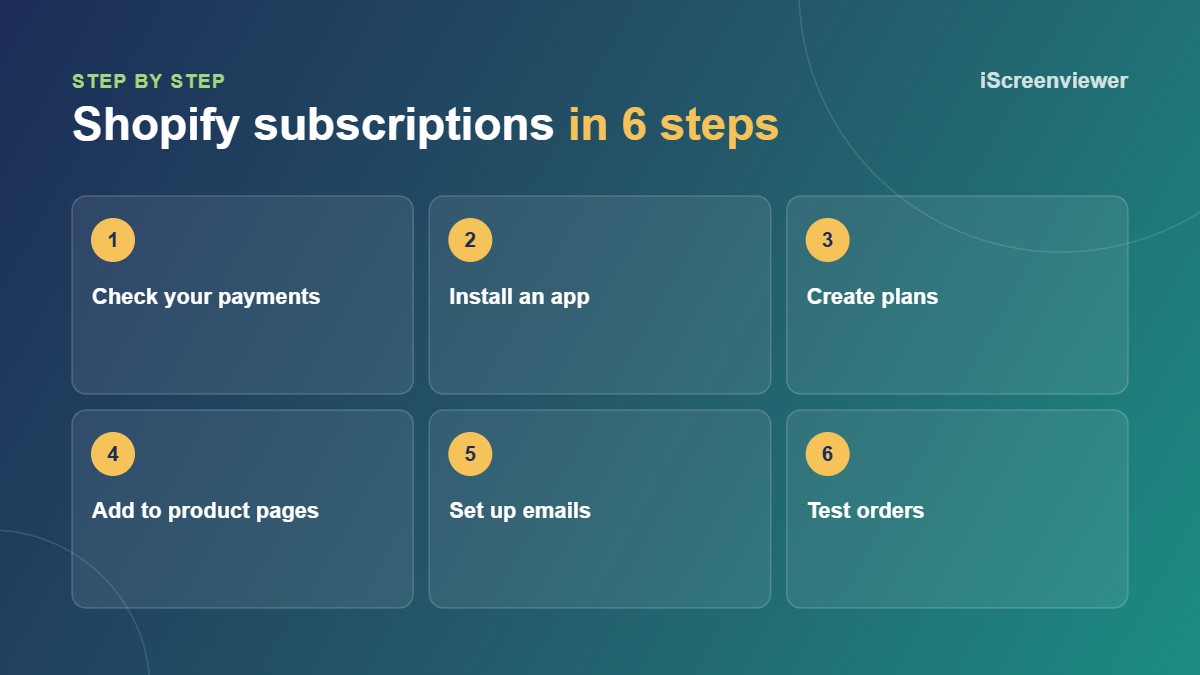
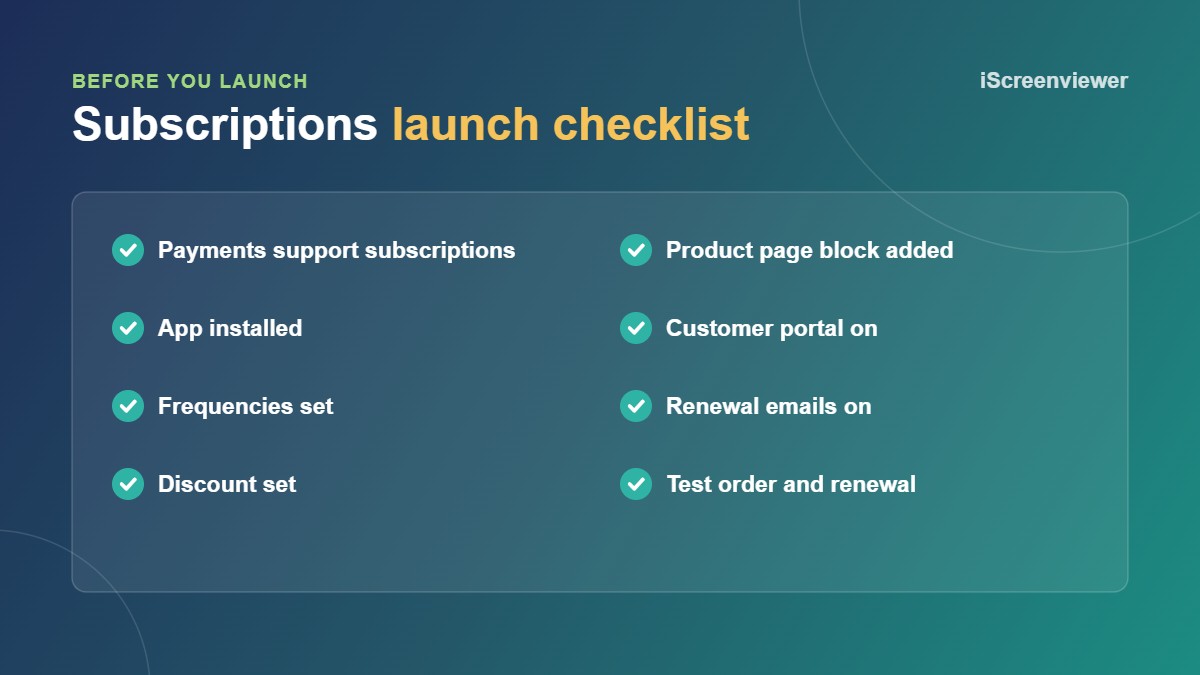
To sell subscriptions on Shopify, check your payment provider supports subscriptions (Shopify Payments does), install a subscriptions app such as Shopify's free Subscriptions app, create plans with delivery frequencies and discounts, add the subscription options to your product pages, then test a full order and renewal. Customers can then manage their own deliveries from their account.
What sells well on subscription
Subscriptions suit products people use up and buy again on a predictable schedule. Coffee, tea, supplements, pet food, skincare, cleaning products and razors are common examples. If customers already reorder every few weeks, subscribe and save gives them a reason to commit and gives you more predictable revenue.
1. Check your payment setup
Subscriptions need a payment provider that can securely store card details and charge renewals. Shopify Payments supports subscriptions, but many third-party gateways don't, so check this first. See Shopify Payments Setup if it isn't set up yet.
2. Choose a subscriptions app
Shopify Subscriptions is free and covers subscribe and save, delivery frequencies, discounts and a customer portal. It suits most small and medium stores. Paid apps such as Recharge, Appstle, Loop or Seal add extras like build your own box, prepaid subscriptions, deeper reporting and offers when someone tries to cancel.
3. Create your subscription plans
Each plan sets:
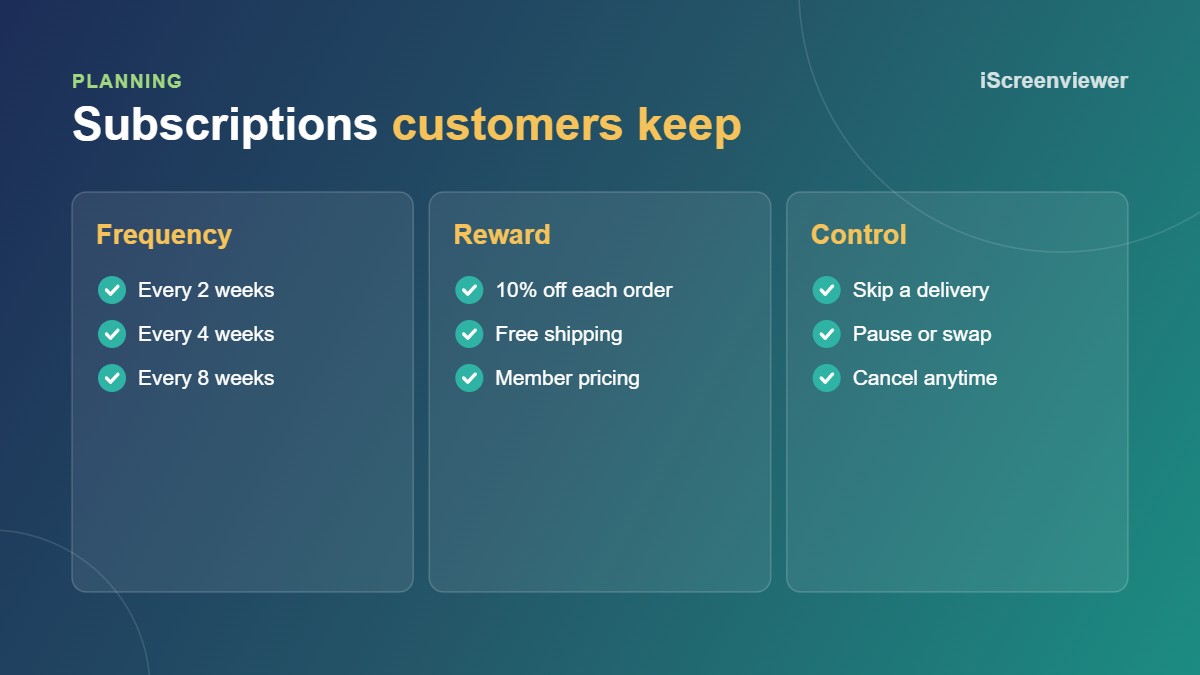
- Delivery frequencies, such as every 2, 4 or 8 weeks
- A subscription discount, often 10 to 15 percent
- Which products and variants it applies to
- Whether one-time purchase stays available
Offer two or three frequencies based on how fast customers use the product. Too many choices slows people down.
4. Show subscriptions on product pages
Add the app's subscription block to your product template, under the price. Show one-time and subscribe options side by side with the saving clearly marked, and explain in one line that customers can skip, pause or cancel any time. That sentence removes the biggest worry about subscribing.
5. Set up the customer portal and emails
The customer portal lets subscribers change frequency, skip a delivery, update their card or cancel without emailing you. Turn on renewal reminders and failed payment emails so customers know what is coming and expired cards get updated. Being clear about renewal dates, prices and how to cancel builds trust and reduces chargebacks.
6. Test a full subscription cycle
Place a test subscription order, check the confirmation email, then use the portal to skip a delivery and change the frequency. If your app allows it, trigger a renewal to make sure the charge, order and inventory all work.
Keeping subscribers
Most cancellations happen because customers have too much stock. Let them skip or delay instead of cancelling, send a reminder before each renewal, and follow up with useful emails. A Klaviyo email flow for new subscribers helps people stick around.
Want subscriptions set up for you?
Shopify Subscriptions App Setup covers the app, plans, product page options, customer portal and test orders for a fixed A$390.
Frequently asked questions
Does Shopify have a free subscriptions app?
Yes. Shopify Subscriptions is free and covers subscribe and save, discounts and a customer portal.
Do I need Shopify Payments to sell subscriptions?
You need a payment provider that supports subscriptions. Shopify Payments does, but many third-party gateways don't.
How much discount should a subscription have?
Most stores offer 10 to 15 percent, or free shipping, on each subscription order.
Can customers cancel subscriptions themselves?
Yes. The customer portal lets them skip, pause or cancel without contacting you.
Can I sell subscriptions and one-time purchases together?
Yes. Most stores show both options on the product page so customers can choose.