

To migrate a WordPress website without downtime, you copy the whole site to the new hosting first, test it there privately, and only then point your domain to the new server. Because the old site keeps running until the switch, visitors never see an error. The key steps are a full backup, copying the files and database, updating the site settings, testing, then changing DNS while keeping your email records in place.
Here is the process I use for WordPress and WooCommerce migrations, in order.
Why people move WordPress hosting
- The site is slow and the host cannot fix it
- Support is poor or hard to reach
- Prices went up at renewal
- A previous developer controls the hosting
- The site needs a newer PHP version or better security
If you are still choosing a host, read website hosting for small business first.
Step 1. Lower your DNS TTL
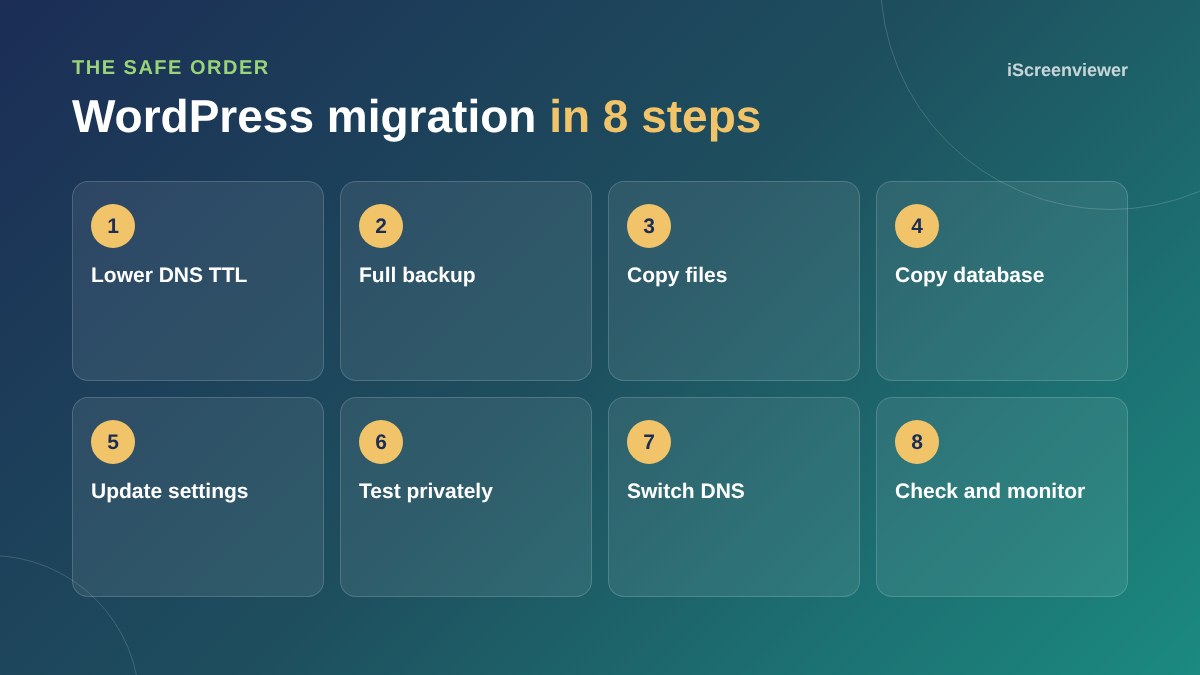
A day or two before the move, lower the TTL (time to live) on your domain's main records to around five minutes, if your DNS provider allows it. This makes the final switch take effect much faster.
Step 2. Take a full backup
Back up all files and the database, and download a copy. If anything goes wrong, you can always go back. For WooCommerce stores, plan the move for a quiet time so no orders are missed between the backup and the switch.
Step 3. Copy the files
Copy everything in your WordPress folder to the new hosting, including wp-content with your themes, plugins and uploads. Migration plugins can bundle this into one file, but large sites are often more reliable to move with SFTP, SSH or your host's migration tool.
Step 4. Copy the database
Export the database from the old host and import it into a new database on the new host. Then update wp-config.php with the new database name, user, password and host.
Step 5. Update settings if the domain changes
If you are keeping the same domain, no URL changes are needed. If the domain is changing, run a proper search and replace on the database so links and images update. A plain text find and replace can break serialised data, so use a tool built for WordPress.
Step 6. Test before anyone sees it
Preview the site on the new server before changing DNS. You can use your host's temporary URL or edit your computer's hosts file so your domain points to the new server just for you. Click through pages, submit forms, log in and run a test checkout.
Step 7. Switch DNS and keep email working
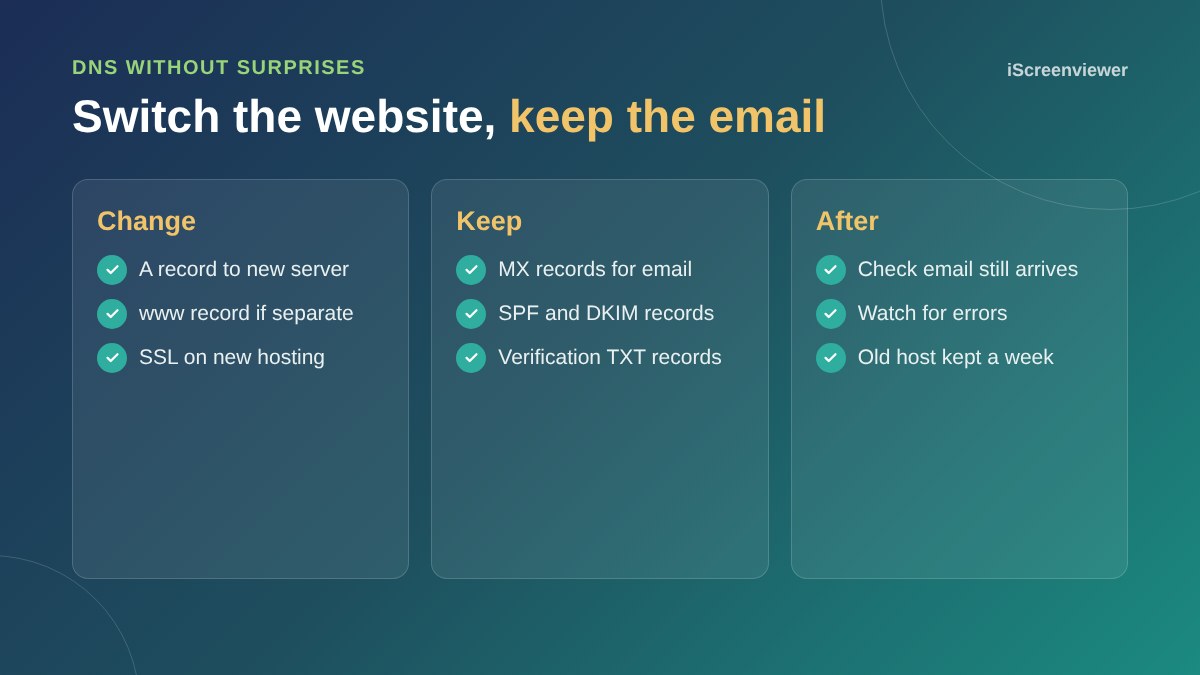
Point your domain's A record, and www if it is separate, to the new server. If your email is with Google Workspace, Microsoft 365 or another provider, leave the MX, SPF and DKIM records exactly as they are. Changing nameservers to the new host is fine too, but copy every existing DNS record across first or your email can stop.
Install the SSL certificate on the new hosting as soon as DNS points there, so your site loads securely over https.
Step 8. Check, monitor and keep the old host for a week
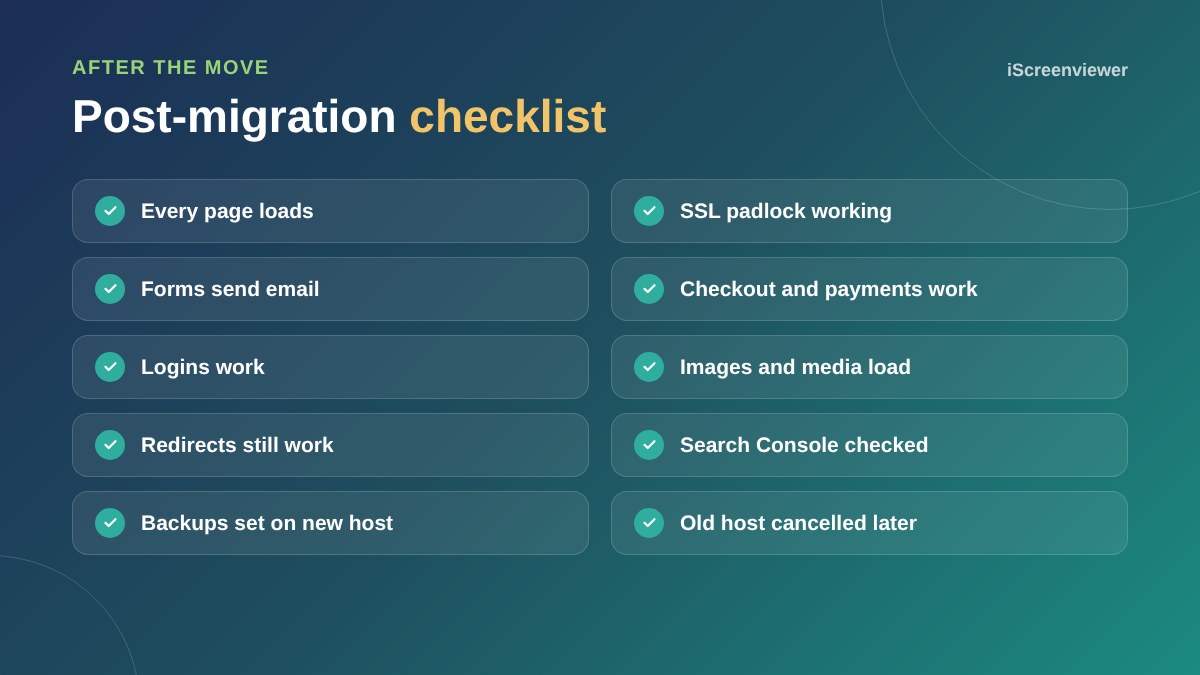
DNS changes can take up to 48 hours to reach everyone, so some visitors may see the old server for a while. Keep the old hosting active for at least a week, check Google Search Console for crawl errors and set up backups on the new host.
Will migrating hurt my SEO?
Moving hosts while keeping the same domain and URLs does not hurt rankings, and a faster host can help. Problems come from broken pages, lost redirects or a site that is offline for days. If you are changing domains as well, set up 301 redirects from every old URL to the new one and use the change of address tool in Search Console.
Want the migration done for you?
The WordPress Website Migration package moves one WordPress or WooCommerce site to new hosting with a full backup, SSL, DNS and testing, and no downtime. Need hosting too? See Website Hosting.
Frequently asked questions
Will my website go offline during a migration?
Not if it is done in the right order. The old site keeps running while the new copy is set up and tested, and the domain is only switched once everything works.
How long does a WordPress migration take?
Most small business sites can be moved and tested in a day. DNS changes can then take up to 48 hours to reach every visitor.
Will my email stop working when I change hosts?
Not if your email is hosted elsewhere and you keep the MX, SPF and DKIM records the same. Mailboxes hosted with your old web host need to be moved separately.
Can I use a plugin to migrate WordPress?
Yes, migration plugins work well for small and medium sites. Large sites and stores are often more reliable to move with SFTP, SSH or the host's migration tool.
Does changing hosts affect Google rankings?
Keeping the same domain and URLs does not hurt rankings. Broken pages, missing redirects or long downtime can.
What about WooCommerce orders during the move?
Plan the move for a quiet time and avoid changes between the final backup and the DNS switch, so no orders are lost.