

Google Merchant Center is where you give Google your product information so your products can appear in Google Shopping, on the Shopping tab, in Google Images and in Search. To set it up, you create a Merchant Center account, verify your website, add your shipping and returns details, then connect your Shopify or WooCommerce store so your products sync automatically.
Free product listings cost nothing, and Merchant Center is also the base for Shopping ads if you want to run them later. Here is how to set it up properly for an Australian store, so your products get approved the first time.
Before you start
- A live online store with working product pages and checkout
- Contact details on your website: phone, email or address
- A clear shipping policy and returns policy published on your site
- Secure checkout over https
- A Google account you will keep long term, ideally a business one
Google reviews your website as well as your products. A store missing a returns policy or contact page is one of the most common reasons for an account-level misrepresentation issue.
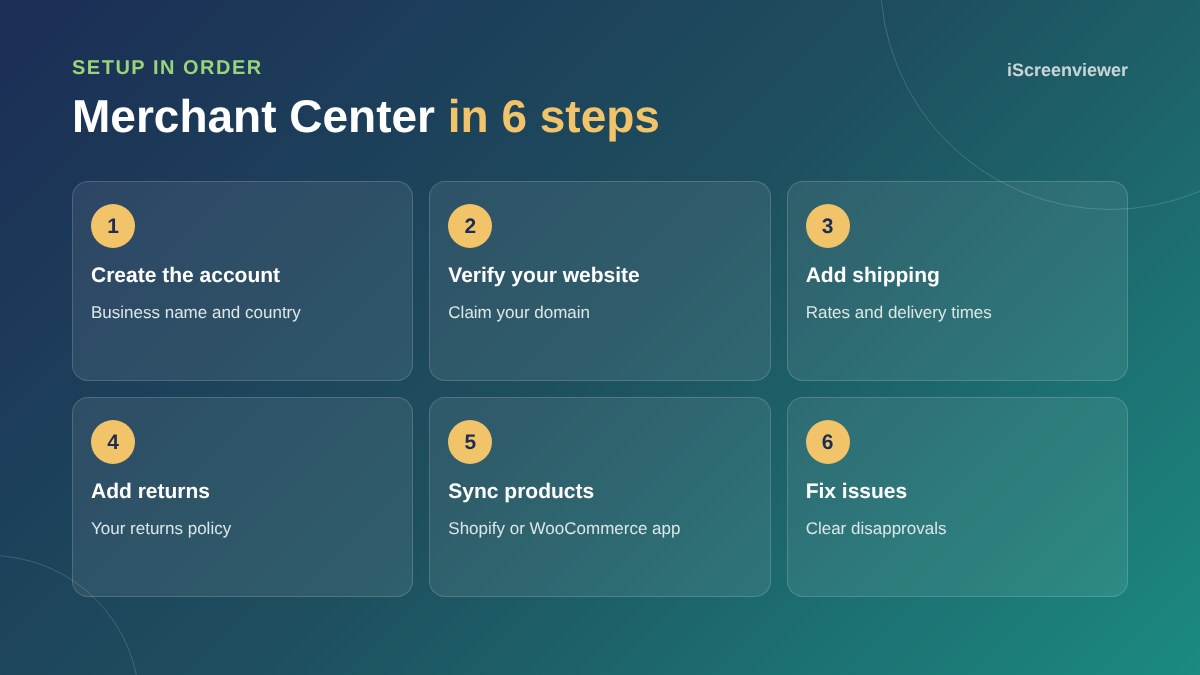
Step 1. Create your Merchant Center account
Go to Google Merchant Center and sign in with your Google account. Enter your business name, select Australia as your country, and add your website. Use the business name customers know, as it appears next to your products.
Step 2. Verify and claim your website
Google needs to confirm you own the website. The easiest options are the Google and YouTube app for Shopify, the Google for WooCommerce plugin, an HTML tag in your site header, or Google Search Console if your site is already verified there. If you have not set up Search Console yet, see the Google Analytics and Search Console setup guide.
Step 3. Add shipping
Under shipping settings, add a service for Australia with your delivery cost and how long delivery takes, including handling time. Match the rates on your website. If shipping in Merchant Center says $10 and your checkout charges $15, products can be disapproved.
Step 4. Add your returns policy
Add your return window, whether returns are free and a link to your returns page. Google shows this information to shoppers, so a clear policy can help your listings stand out.
Step 5. Add your products
Do not upload products by hand. Connect your store so prices and stock stay in sync:
- Shopify: install the Google and YouTube app, connect your Merchant Center account and choose which products to sync
- WooCommerce: install Google for WooCommerce, or a feed plugin if you need more control over your product data
- Other platforms: use a scheduled feed file or a Google Sheet
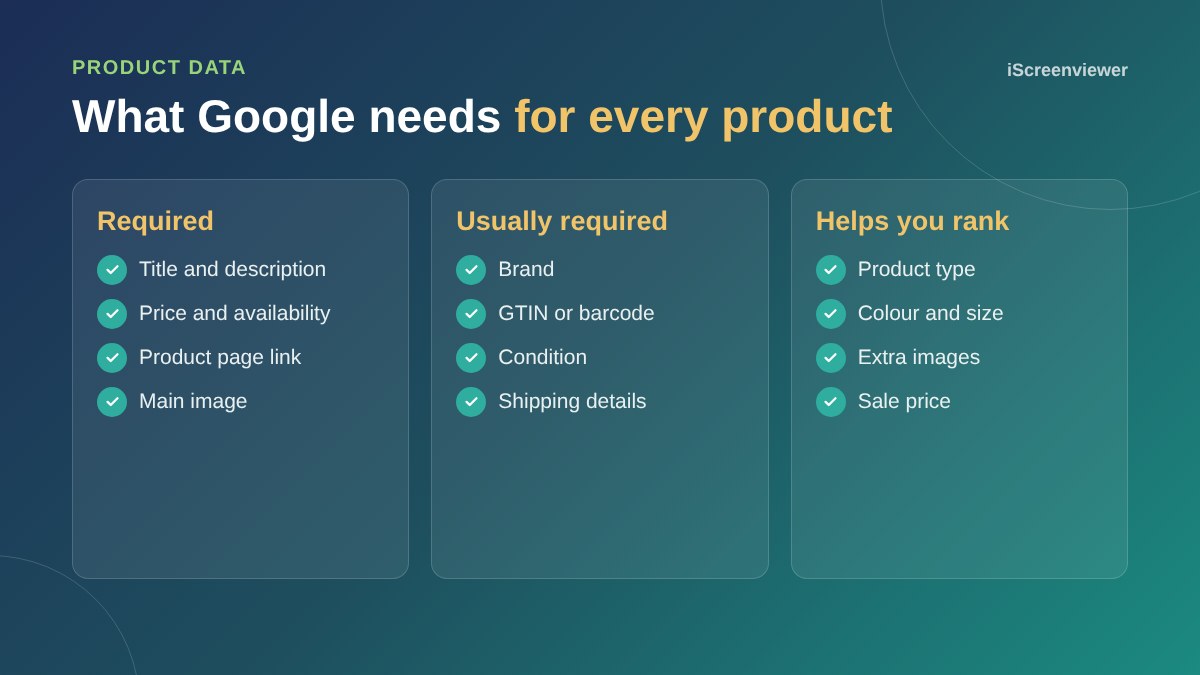
Good product data matters. Your product title is the main thing Google matches to searches, so lead with what the product is, then brand, model, size or colour. Add GTINs (barcodes) for branded products. Our product listing SEO guide explains how to write titles that rank.
Step 6. Turn on free listings and check for issues
Make sure free listings are switched on for your products. Google then reviews your products, which can take a few business days. Check the products and diagnostics sections for anything that needs attention and work through the list.
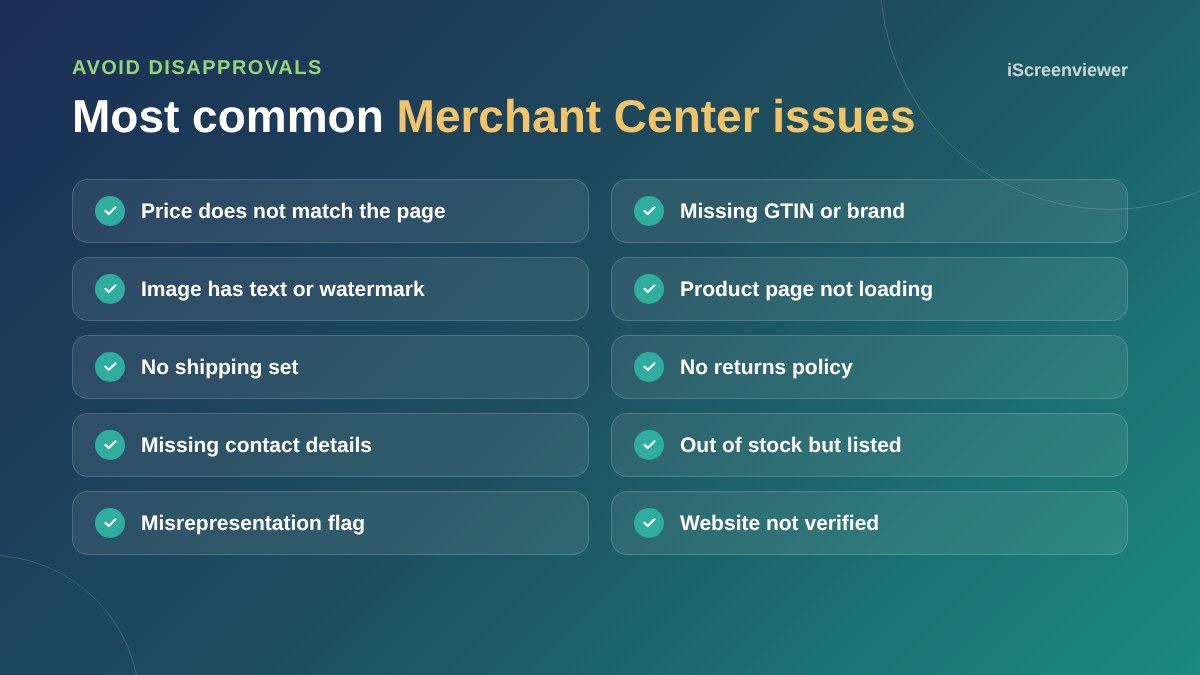
How to fix common issues
- Price mismatch: make sure the price on the page, including GST, matches the feed and that sale prices have dates
- Missing GTIN: add barcodes, or mark custom products as having no GTIN
- Image issues: use a clean product image with no promotional text, borders or watermarks
- Misrepresentation: add contact details, policies and secure checkout, then request a review
- Landing page errors: fix broken product links and check your site is not blocking Google
After setup: get more from Merchant Center
Once products are approved, link Google Ads if you want to run Shopping or Performance Max campaigns, and link your Google Business Profile if you have a shop customers can visit. Keep an eye on the performance reports to see which products get clicks, then improve titles and images for the rest.
Want it set up for you?
The Google Merchant Center Setup and Optimisation package covers account setup, verification, shipping, returns, product sync and fixing disapprovals. Already set up but products are disapproved? See the Google Merchant Listing Audit and Fix.
Frequently asked questions
Is Google Merchant Center free?
Yes. Merchant Center and free product listings cost nothing. You only pay if you choose to run Shopping or Performance Max ads through Google Ads.
How long does Merchant Center approval take?
Product reviews usually take a few business days. Account-level reviews, such as a misrepresentation review, can take longer.
Do I need GTINs for my products?
Branded products sold by many retailers should have GTINs (barcodes). Handmade or custom products usually do not have one, and you can tell Google that no GTIN exists.
Why are my products disapproved?
The most common reasons are price mismatches, missing GTINs, image problems, missing shipping or returns information and broken product pages. The diagnostics section explains each issue.
Can I use Merchant Center with WooCommerce?
Yes. Google for WooCommerce connects your store, verifies your site and syncs your products. Feed plugins give more control over titles and attributes.
What is a misrepresentation issue?
It means Google does not trust the store enough to show its products. Clear contact details, shipping and returns policies, secure checkout and accurate product information usually fix it.