

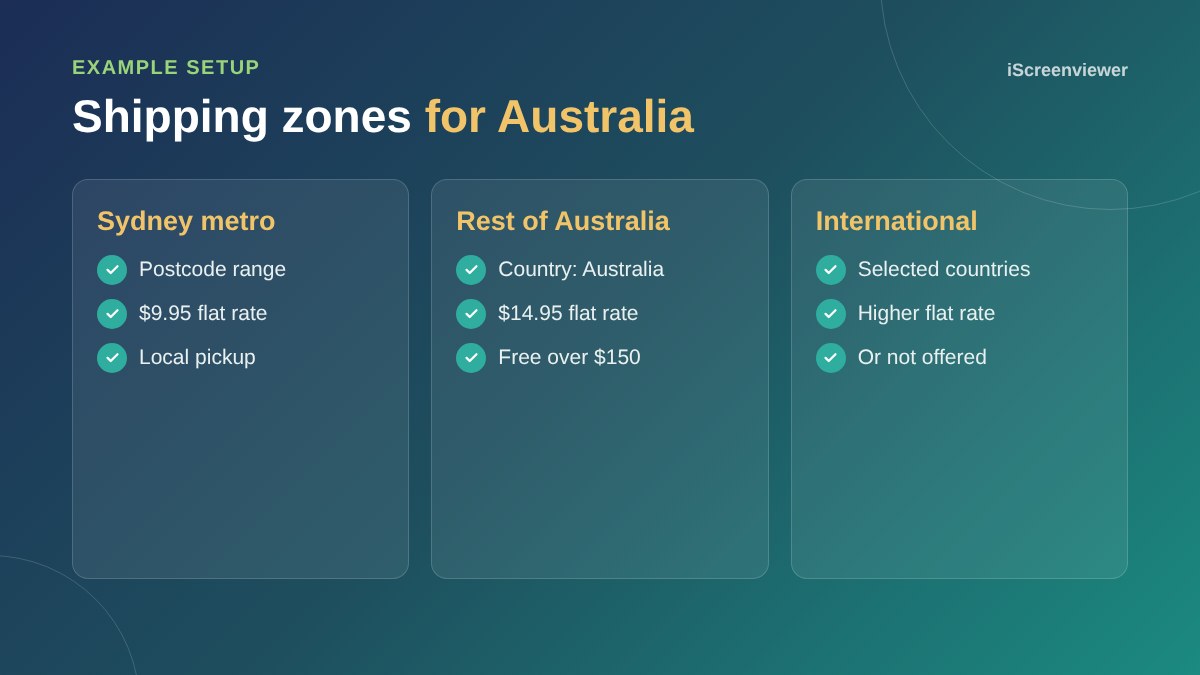
WooCommerce shipping zones are geographic areas, such as Sydney metro, the rest of Australia or international, each with its own shipping methods and rates. When a customer enters their address, WooCommerce checks the zones from top to bottom, uses the first one that matches, and shows only that zone's shipping options.
Getting zones right means customers see fair prices and you do not lose money on delivery. Here is how to set them up.
Where to find shipping zones
Go to WooCommerce > Settings > Shipping. Click Add zone, give it a name, choose the regions it covers, then add one or more shipping methods.
Using postcodes for metro and regional rates
Regions can be countries, states or postcodes. Under Limit to specific postcodes, you can enter ranges with three dots, such as 2000...2234, or wildcards like 2*. Put your most specific zones, such as a metro postcode range, at the top, and the broader Australia-wide zone below it.
Shipping methods
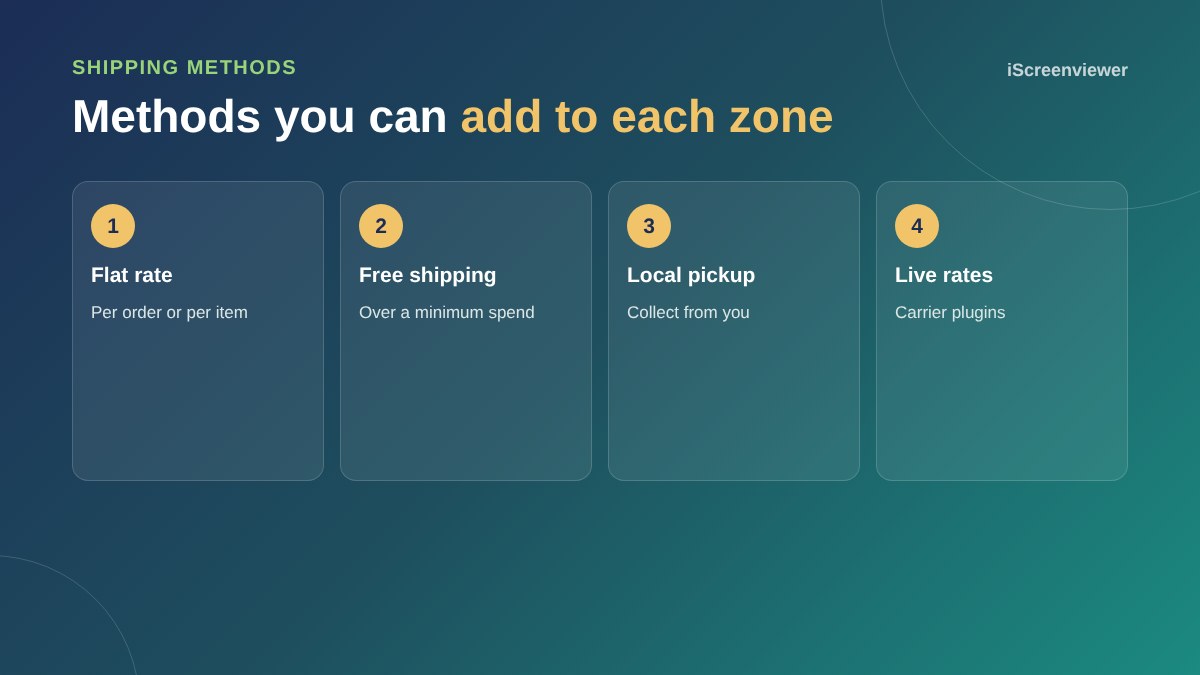
- Flat rate: a fixed cost per order, or per item using
[qty]in the cost field - Free shipping: require a minimum order amount or a coupon
- Local pickup: lets nearby customers collect, with your pickup address shown at checkout
- Live carrier rates: plugins for Australia Post and other carriers calculate rates by weight and size
Shipping classes for bulky items
If some products cost more to send, create a shipping class such as Bulky under Shipping > Classes and assign it to those products. Each flat rate method can then charge extra for that class.
Locations not covered
Any address that does not match a zone falls into Locations not covered by your other zones. Leave it empty if you do not ship there, and customers will see a clear message instead of a wrong price.
Digital products and services
Mark products as virtual and WooCommerce skips shipping entirely. See how to sell digital products and services with WooCommerce.
Test every zone
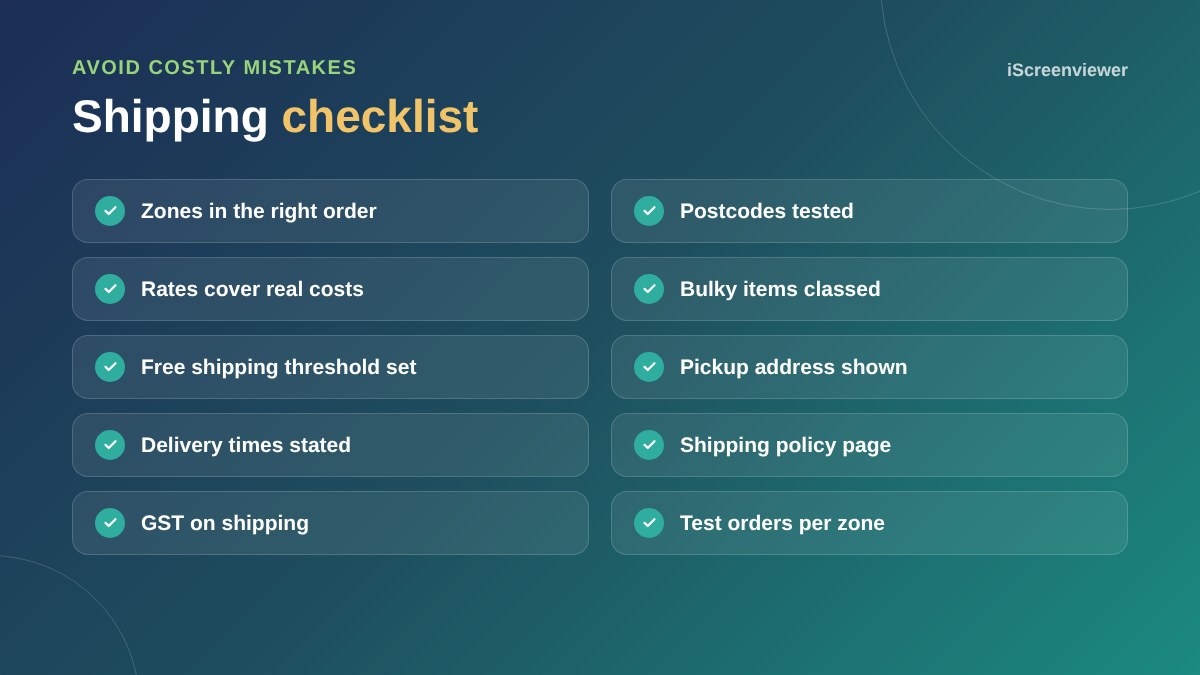
Add a product to your cart and test an address in each zone, including an edge-case postcode. Check that GST applies to shipping, as covered in the WooCommerce GST guide.
Flat rate cost formulas
The flat rate cost field accepts simple formulas. For example, 10 + ( 2 * [qty] ) charges $10 plus $2 per item, and [fee percent="10" min_fee="5"] adds 10% of the cart value with a $5 minimum. Formulas let you charge fairly without installing a shipping plugin.
Setting a free shipping threshold
A free shipping threshold encourages customers to add one more item. Set it just above your average order value, and make sure your margins can absorb the delivery cost. Show the threshold on product pages and in the cart, for example Free shipping on orders over $150, so customers know how close they are.
Delivery times and your shipping policy
Customers want to know when an order will arrive, not just what it costs. Add delivery times to your shipping method names, such as Standard (3 to 7 business days), and publish a shipping policy page that covers dispatch times, carriers, tracking and what happens if a parcel is lost.
Want shipping set up for you?
Shipping zones, rates and pickup are included in the WooCommerce Store Setup and Styling package.
Frequently asked questions
How do WooCommerce shipping zones work?
WooCommerce checks zones from top to bottom and uses the first zone that matches the customer's address, showing only that zone's methods.
Can I set shipping rates by postcode in WooCommerce?
Yes. Limit a zone to specific postcodes using ranges such as 2000...2234 or wildcards such as 2*.
How do I offer free shipping over a certain amount?
Add a Free shipping method to the zone and set it to require a minimum order amount.
Why is no shipping showing at checkout?
Usually the address does not match any zone, or the matching zone has no enabled methods.
Can WooCommerce calculate Australia Post rates?
Yes, with a carrier plugin that calculates rates from product weight and dimensions.
Do I charge GST on shipping?
Generally, if the goods are taxable, so is the delivery. Tick Shipping on your GST rate and confirm with your accountant.