

To set up GST in WooCommerce, turn on taxes under WooCommerce > Settings > General, choose to enter prices including GST, add a 10% standard tax rate for Australia named GST and make sure it applies to shipping. Then check that your cart, checkout, order emails and invoices show the GST amount clearly.
That is the short version. The details matter, because a wrong setting can mean customers see a different price at checkout than on the product page, or your records do not match what you report to the ATO. This guide walks through every GST setting in WooCommerce for Australian stores, and the mistakes I see most often when reviewing stores.
Do you need to charge GST?
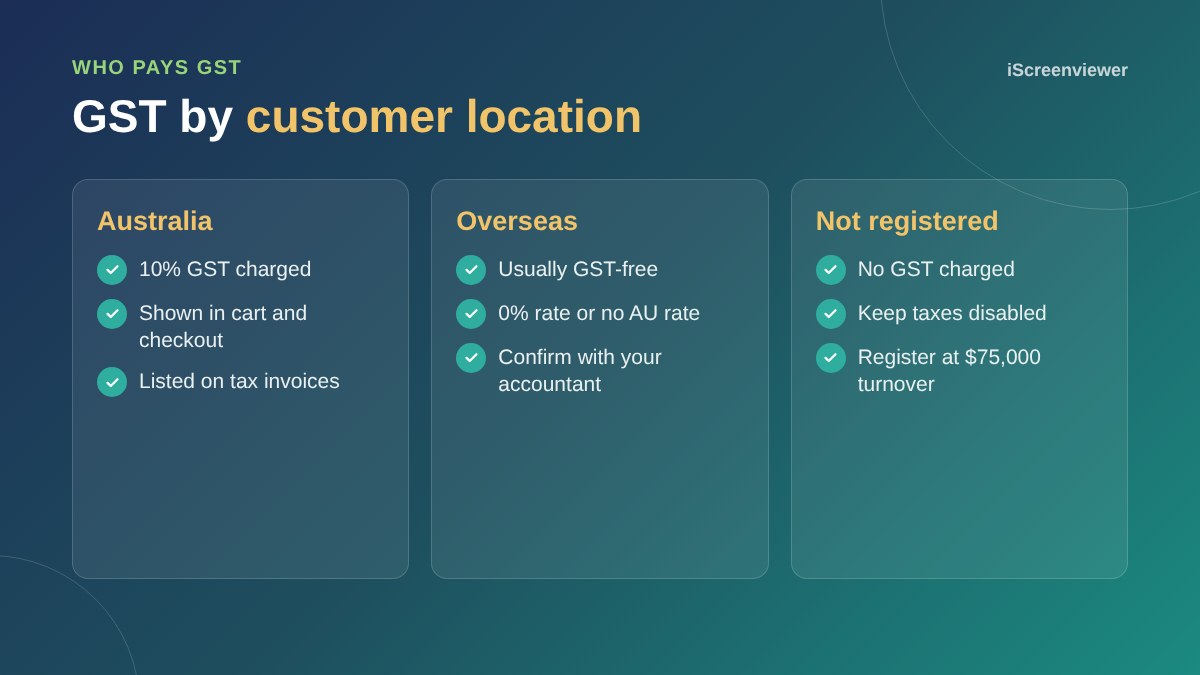
You need to register for GST once your business turnover reaches $75,000 a year, or $150,000 for non-profit organisations. You can also register voluntarily below that. If you are not registered, do not charge GST, and leave taxes switched off in WooCommerce.
If you are registered, most goods and services you sell to Australian customers include 10% GST. Some items, such as certain basic foods, are GST-free. If you sell a mix, you will need more than one tax class, which is covered below. This guide explains the WooCommerce settings, not tax advice, so confirm the rules for your business with your accountant.
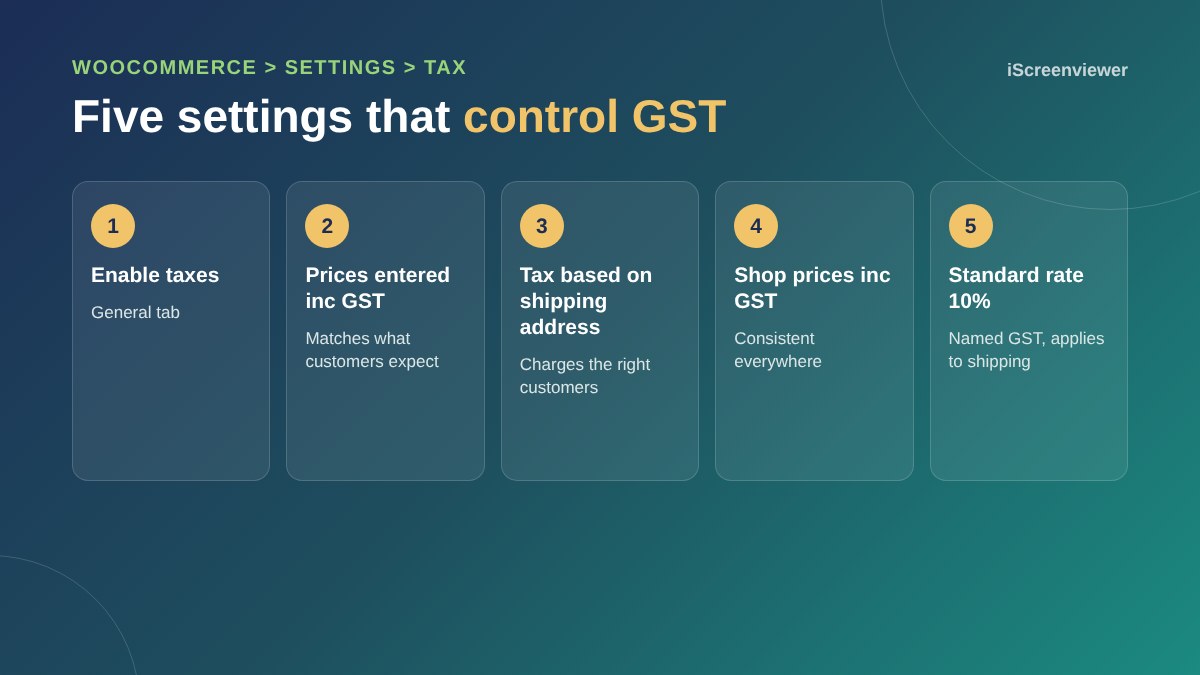
Step 1. Enable taxes
Go to WooCommerce > Settings > General and tick Enable tax rates and calculations. Save, and a new Tax tab appears at the top of the settings screen.
Step 2. Choose how you enter prices
On the Tax tab, set Prices entered with tax to Yes, I will enter prices inclusive of tax. Australian shoppers expect the price they see to be the price they pay, so entering prices including GST keeps your product pages, cart and checkout consistent.
If you switch this setting after adding products, WooCommerce does not change your stored prices. A $110 product entered excluding GST would suddenly sell for $121, or the other way around. Decide this before you add products, or check every price after you change it.
Step 3. Set what tax is calculated on
Calculate tax based on should usually be Customer shipping address. That way an Australian delivery is charged GST and an overseas delivery can be treated differently. For digital products or services with no shipping, WooCommerce uses the billing address instead.
Leave Shipping tax class set to Shipping tax class based on cart items unless your accountant advises otherwise. In most cases, if the items are taxable, the delivery fee is taxable too.
Step 4. Choose how prices and totals are displayed
- Display prices in the shop: Including tax
- Display prices during cart and checkout: Including tax
- Price display suffix: optional, for example inc GST
- Display tax totals: As a single total, which shows one clear GST line in the cart and on orders
Keep these consistent. A shop page that shows prices excluding GST and a checkout that adds GST at the end is one of the quickest ways to lose a sale.
Step 5. Add the 10% GST rate
Click Standard rates and insert a row with these values:
- Country code: AU
- State, postcode and city: leave blank so it applies Australia-wide
- Rate %: 10.0000
- Tax name: GST
- Priority: 1
- Compound: unticked
- Shipping: ticked
Save the rates. If you sell GST-free items, add a Zero rate class with a 0% AU row, then set those products to the Zero rate tax class on their edit screen.
Overseas customers
Goods exported overseas and many services provided to customers outside Australia are generally GST-free. In WooCommerce, the simplest approach is to have only an AU rate. Customers with an overseas shipping or billing address then pay no GST.
One catch: because prices are entered including GST, WooCommerce removes the GST portion for overseas customers, so a $110 product sells for $100. If you want overseas customers to pay the same price, look at the woocommerce_adjust_non_base_location_prices filter, or ask your developer to set it up.
Tax invoices and order emails
Your order confirmation often works as the customer's tax invoice, so make sure it shows your business name, ABN, the order date, what was sold and the GST amount. Add your ABN to the email footer under WooCommerce > Settings > Emails, and consider a PDF invoice plugin if business customers ask for formal invoices. The ATO website lists the full tax invoice requirements.
Payment gateways, coupons and GST
Stripe, PayPal and Afterpay take the order total from WooCommerce, so if your tax settings are right, payments will be right. Coupons are applied before tax is calculated, so a 10% coupon on a $110 product gives a $99 total including $9 GST. Test a coupon order before a big sale such as Black Friday.
Common WooCommerce GST mistakes
- Changing the inclusive or exclusive setting after products are added
- Forgetting to tick Shipping on the GST rate, so delivery fees have no GST
- Showing prices excluding GST on the shop and adding GST at checkout
- Charging GST before the business is registered
- No ABN on order emails or invoices
- Leaving old test rates in the tax table
Test before you sell
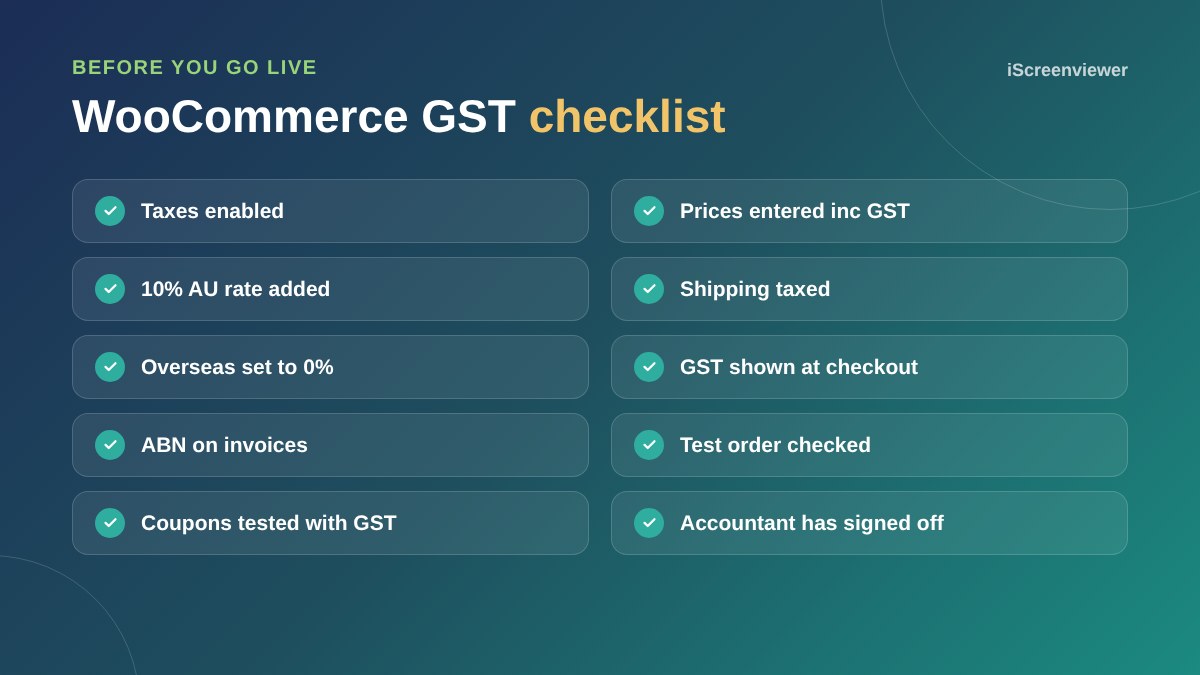
Place a test order to an Australian address and one to an overseas address. Check the product page price, cart, checkout, order email and the order in your dashboard. The GST line should be one eleventh of the total for Australian orders, for example $10 on a $110 order.
Want your GST and store set up for you?
The WooCommerce Store Setup and Styling package includes GST, payments and shipping set up and tested for a fixed price. If you are starting from scratch, read how to set up WooCommerce first.
Frequently asked questions
What GST rate do I set in WooCommerce?
Add a standard rate of 10% for country code AU, name it GST and tick Shipping so delivery fees include GST too.
Should I enter prices including or excluding GST?
Most Australian stores enter prices including GST, because that is the price customers expect to see and pay. Decide before adding products, as WooCommerce does not convert existing prices when you change this setting.
Do overseas customers pay GST on my WooCommerce store?
Exports and many services to overseas customers are generally GST-free. If you only add an AU rate, WooCommerce will not charge GST to overseas addresses. Confirm the rules for your products with your accountant.
Why did my prices drop for overseas customers?
When prices are entered including GST, WooCommerce removes the GST for customers outside Australia. A developer can change this so overseas customers pay the same price.
Do I need to charge GST if I am not registered?
No. If your business is not registered for GST, do not charge it. You must register once your annual turnover reaches $75,000, or $150,000 for non-profits.
Can WooCommerce produce tax invoices?
Order emails can act as tax invoices if they include your business name, ABN, date, items and GST. A PDF invoice plugin can create formal invoices for business customers.