

To remove malware from WordPress, back up the infected site, change every password, scan the files and database, replace WordPress core files with clean copies, reinstall themes and plugins from trusted sources, clean injected code and spam from the database, remove unknown admin users and back doors, then update everything, harden the site and request a review from Google. The goal is not just to remove the visible symptoms, but to close the way in.
If you are not sure whether your site is infected, start with 10 signs your WordPress site has been hacked.
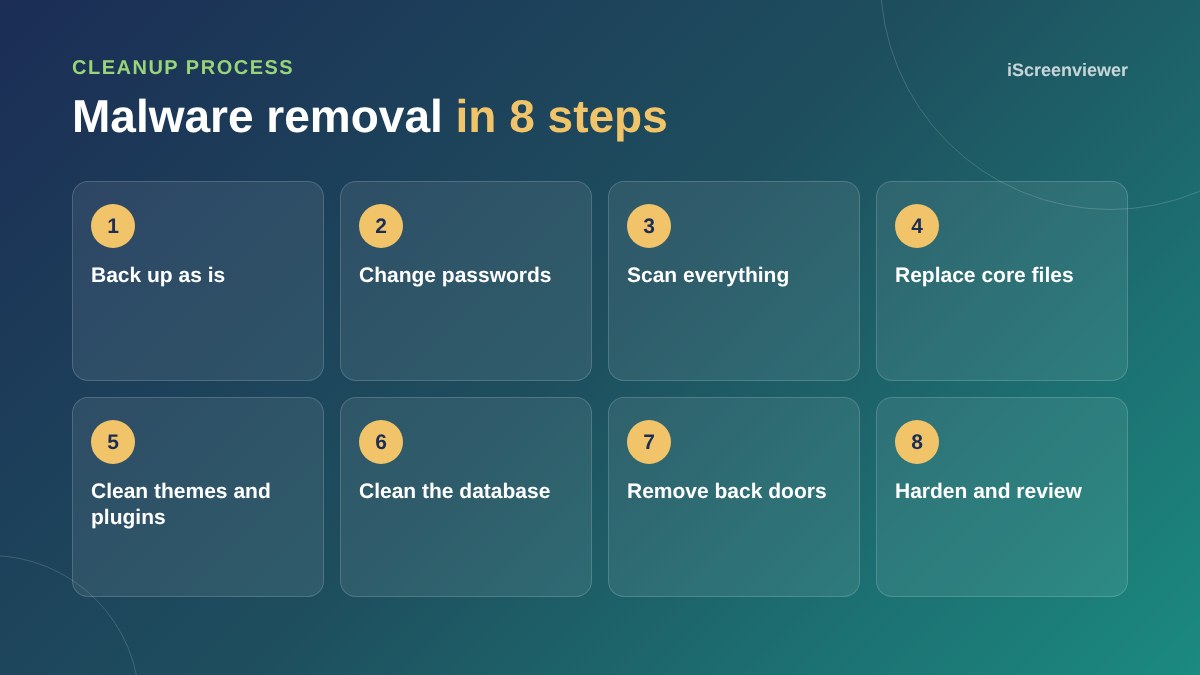
1. Back up the site as it is
Take a full backup of files and database before changing anything, so nothing is lost if a cleanup step goes wrong.
2. Change every password
Change WordPress admin, hosting, SFTP, database and email passwords. Regenerate the security keys and salts in wp-config.php, which logs everyone out.
3. Scan files and database
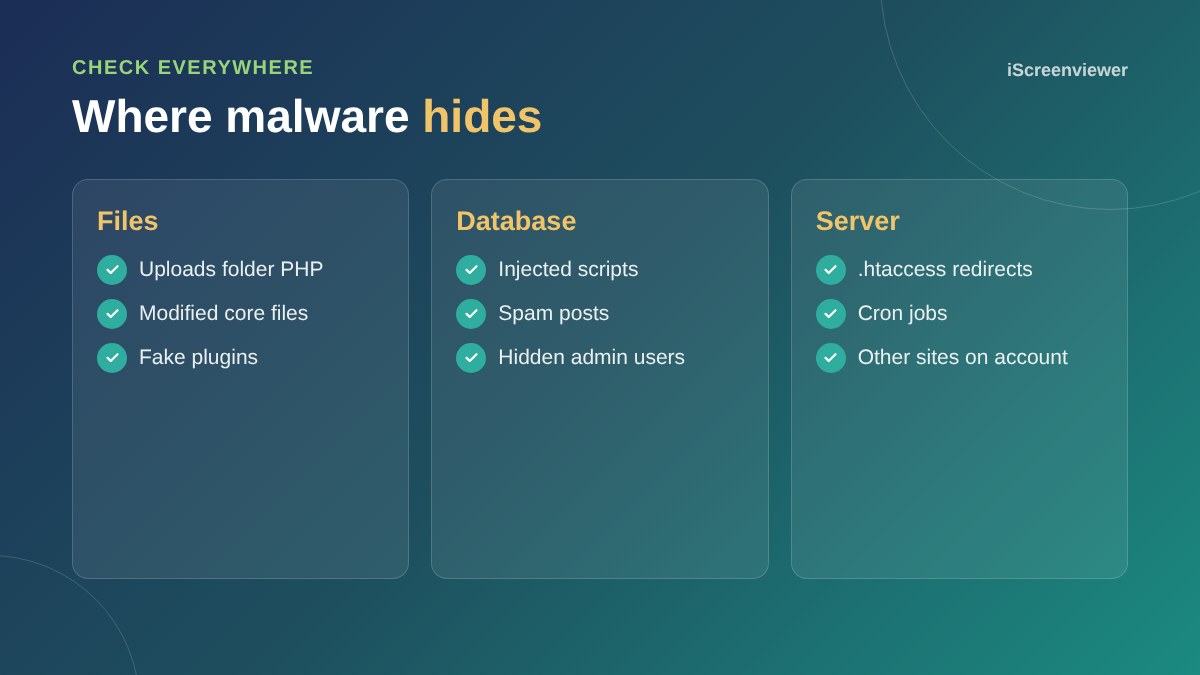
Use a reputable security scanner and also check manually for PHP files in the uploads folder, recently modified files and suspicious code.
4. Replace core, themes and plugins
Replace WordPress core files with a fresh copy of the same version. Reinstall themes and plugins from official sources rather than trying to clean each file. Delete anything you do not use, and never use nulled premium plugins.
5. Clean the database
Look for injected scripts in posts, widgets and options, spam pages and unknown admin users.
6. Remove back doors
Attackers often leave hidden ways back in, such as rogue files, scheduled tasks or modified .htaccess rules. If you miss one, the site is reinfected within days.
7. Update and harden
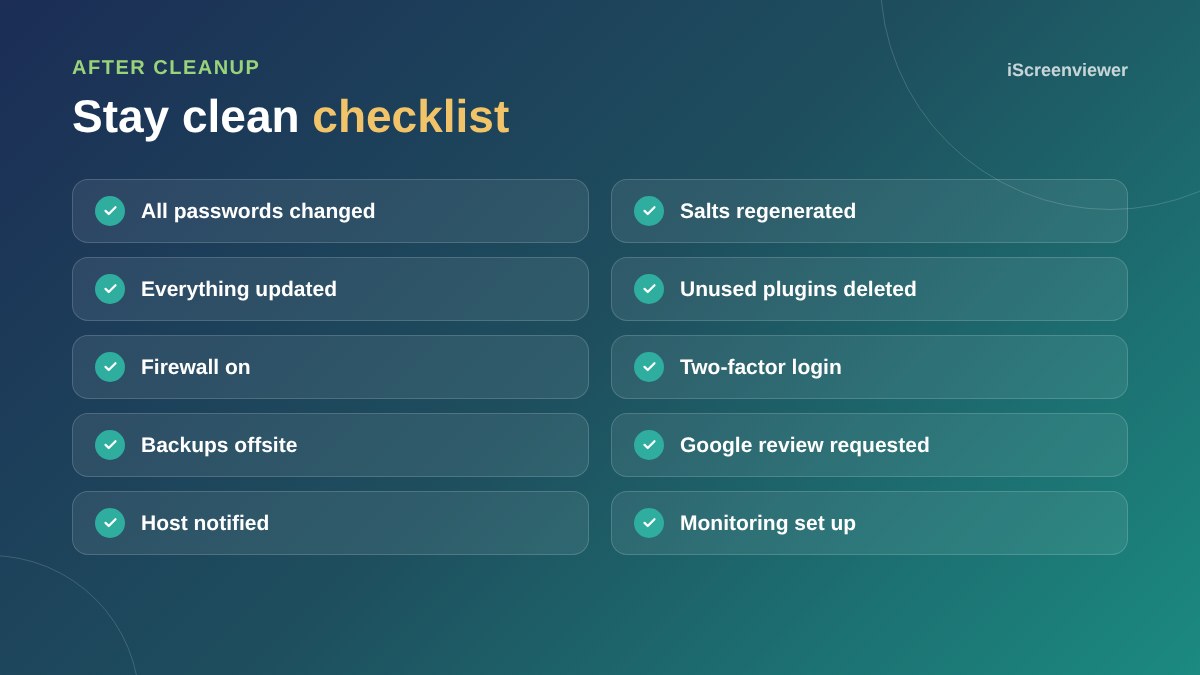
Update everything, switch on a firewall, add two-factor login, limit login attempts and set up offsite backups. See the WordPress security checklist.
8. Request reviews
If Google flagged your site, request a review in Search Console's Security issues report. Let your host know the site is clean if they suspended it.
Why sites get reinfected
The most common reasons are a missed back door, an outdated plugin that was not updated, a compromised password that was not changed, or another infected website on the same hosting account. Clean every site on the account, not just the one showing symptoms.
Want it cleaned properly?
The Malware Cleanup: Entire Site package removes the infection, closes back doors and hardens your site for a fixed price.
Frequently asked questions
Can I remove WordPress malware myself?
Sometimes, but it is easy to miss back doors. If the site keeps getting reinfected, get professional help.
Will removing malware delete my content?
A proper cleanup keeps your content and removes only malicious code and files.
Should I restore an old backup instead?
Only if it is from before the infection and you also fix the weakness that let attackers in.
How long does malware removal take?
Many sites can be cleaned within a day, depending on how widespread the infection is.
How do I remove the Google hacked warning?
Clean the site, then request a review in Search Console's Security issues report.
How do I stop malware coming back?
Keep everything updated, remove unused plugins, use strong passwords and two-factor login, add a firewall and monitor the site.