

WordPress updates fix security holes, bugs and compatibility problems in WordPress core, plugins and themes. Once a vulnerability is fixed and published, attackers scan the web for sites that have not updated, which is why outdated plugins are the most common way WordPress sites get hacked. Updating regularly, with a backup and a quick test, keeps your site secure, fast and working.
What updates do
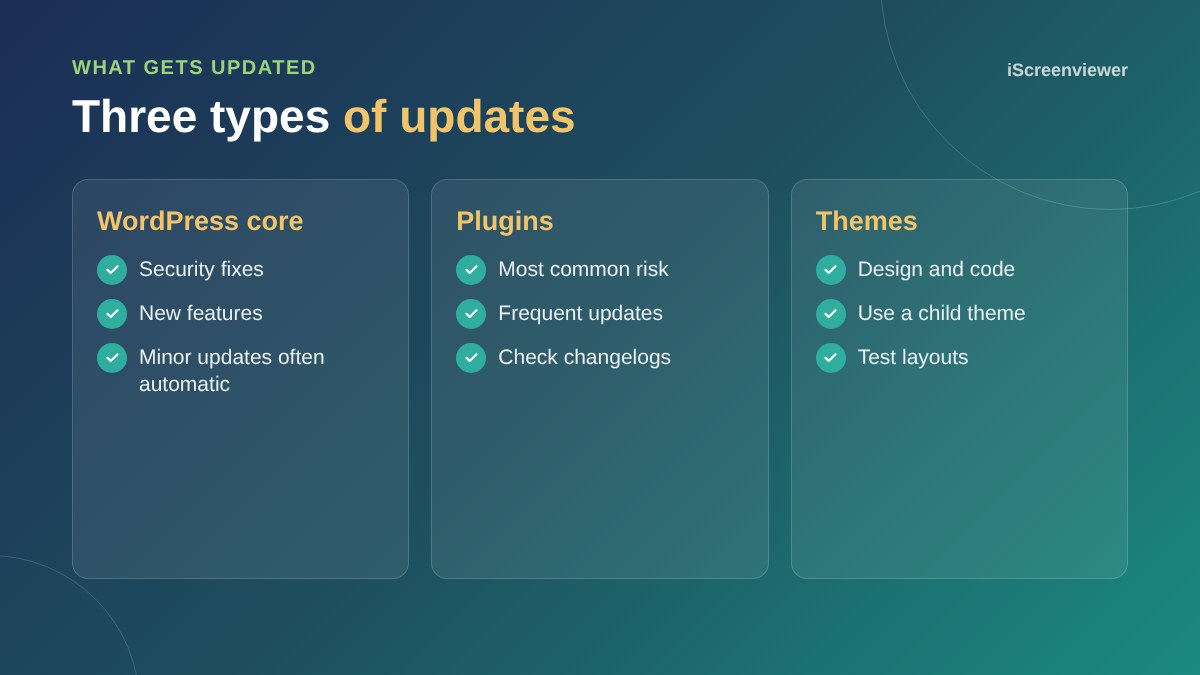
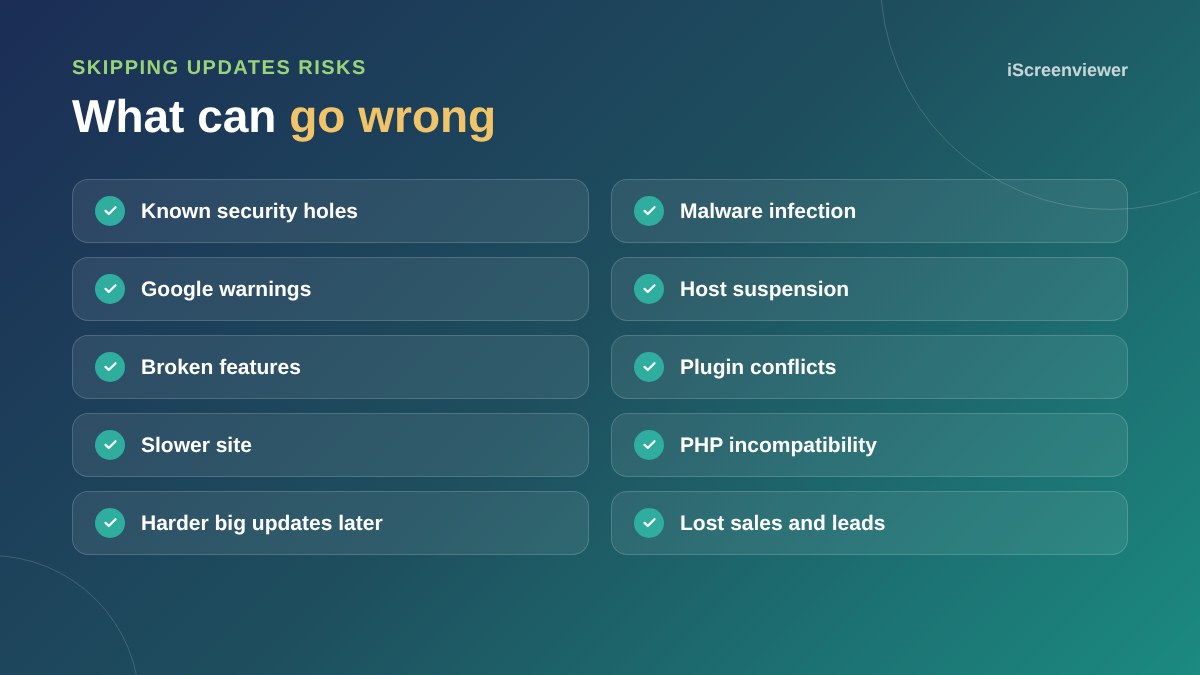
Updates patch security vulnerabilities, fix bugs, improve performance and keep everything compatible with newer PHP versions and browsers. Skipping them leaves known problems in place.
The real risk of skipping updates
When a plugin vulnerability is published, automated bots start probing websites for it. A site that is months behind on updates is an easy target. Cleaning up a hack costs far more than regular maintenance. See signs your WordPress site has been hacked.
How to update safely
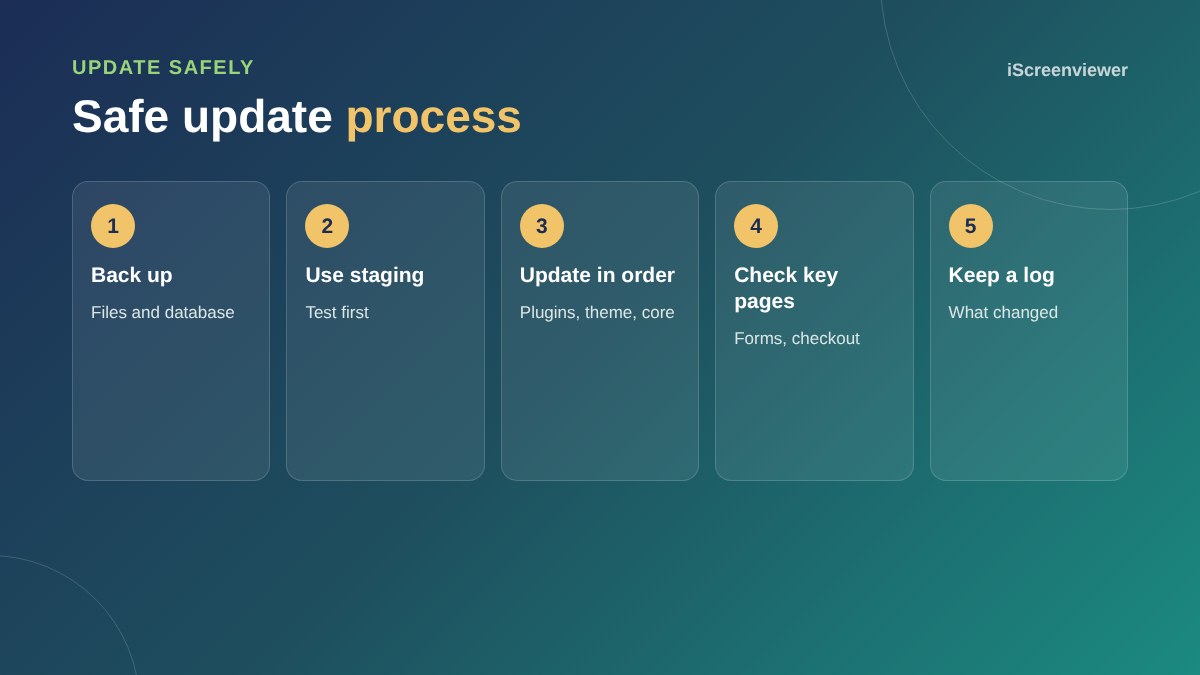
- Take a full backup first
- Test major updates on a staging copy
- Update plugins, then the theme, then core
- Check the home page, forms, checkout and key pages afterwards
- Keep a note of what was updated and when
Automatic updates
WordPress applies minor core updates automatically by default, and you can turn on automatic updates for plugins. This suits simple sites. For online stores and complex sites, a managed approach with testing is safer.
When updates break things
Occasionally an update conflicts with another plugin or your theme. With a backup and staging, you can roll back quickly and fix the conflict without the live site going down.
Do not forget PHP
Your server's PHP version also needs updating over time. Older versions stop receiving security fixes, and new plugins stop supporting them. Check your hosting control panel and plan PHP upgrades alongside WordPress updates.
Abandoned plugins
Sometimes a plugin stops receiving updates because the developer has moved on. An abandoned plugin will not get security fixes, so it becomes a growing risk. Check when each plugin was last updated, and replace any that have not been updated in a long time with a maintained alternative.
Premium plugins and licences
Premium plugins only receive updates while your licence is active. Keep licences renewed, or the plugin quietly falls behind. Never use nulled copies of premium plugins, which often contain malware.
A simple monthly routine
- Take a backup
- Update plugins, theme and core
- Check the home page, a service page, the contact form and checkout
- Remove plugins you no longer use
- Note what was updated
Want updates handled for you?
Website Support and Maintenance takes care of updates, backups and checks, so your site stays secure.
Frequently asked questions
How often should I update WordPress?
Check at least weekly and apply security updates promptly.
Can updating WordPress break my site?
Occasionally. A backup and staging test before major updates prevents downtime.
Should I turn on automatic plugin updates?
For simple sites it can help. For stores and complex sites, test updates first.
What order should I update in?
Back up, then update plugins, then the theme, then WordPress core.
What happens if I never update?
Your site becomes increasingly vulnerable to hacks and may stop working with newer PHP versions.
Do I need to update themes too?
Yes. Themes can contain vulnerabilities and need updates like plugins.