

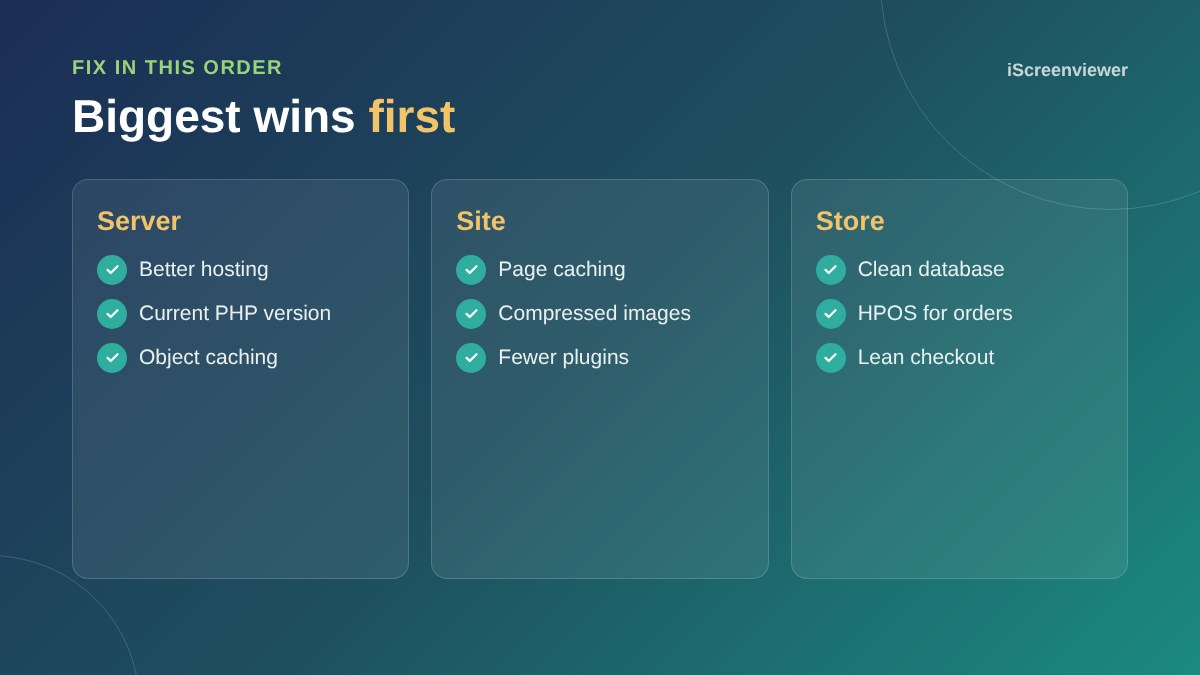
Most slow WooCommerce stores come down to a few causes: underpowered hosting, too many plugins, large images, no page caching and a database full of old data. Fix the hosting and caching first, then trim plugins and images, then clean the database. Those changes usually make the biggest difference to load times and sales.
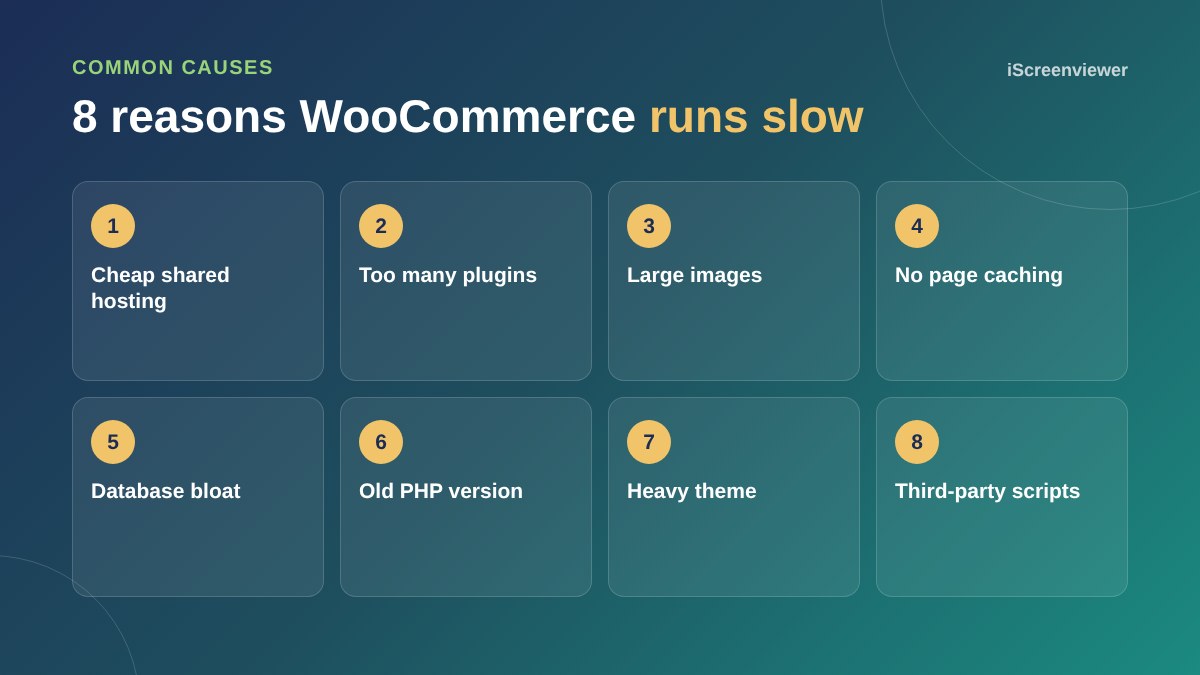
1. Hosting
WooCommerce needs more server power than a brochure website, because carts, checkout and account pages cannot be fully cached. Cheap shared hosting is the most common bottleneck. See website hosting for small business.
2. Too many plugins
Each plugin can add scripts, database queries or both. Remove anything you do not use, and replace several small plugins with one that does the job well.
3. Large images
Product images straight from a camera can be several megabytes. Resize them, compress them and serve WebP where possible.
4. No page caching
Cache your shop, category and product pages, but exclude the cart, checkout and My Account pages so customers always see their own data.
5. Database bloat
Old sessions, expired transients, revisions and scheduled action logs build up over time. Clean them regularly. Newer WooCommerce versions also offer High-Performance Order Storage, which stores orders in dedicated tables and can speed up busy stores.
6. Old PHP version
Running a current, supported PHP version is faster and more secure. Check your hosting control panel and update after testing on a staging copy.
7. A heavy theme
Multipurpose themes and page builders can load a lot of code on every page. A lighter theme or a custom theme can be much faster.
8. Third-party scripts
Chat widgets, review apps, tracking pixels and popups all add weight. Load them only where needed.
How to measure
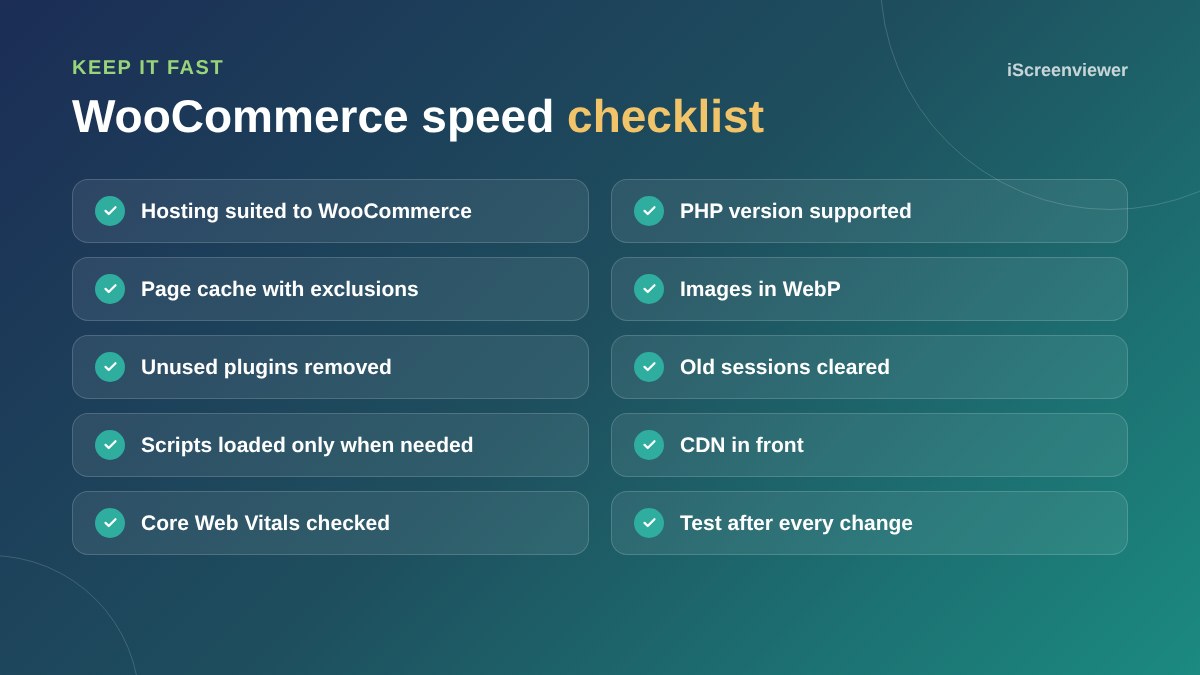
Test key pages in PageSpeed Insights and check Core Web Vitals in Google Search Console. Measure before and after every change so you know what helped.
For general WordPress issues, see common WordPress problems and fixes.
Cart fragments and AJAX requests
WooCommerce can send a background request on page load to keep the mini cart up to date. On busy stores, this adds load to the server and can slow every page. Many themes and performance plugins can limit it to pages where the cart is shown, or load it only after a customer adds a product.
Use a staging site
Speed changes such as new caching rules, PHP upgrades or removing plugins can break things. Test them on a staging copy of your store first, then apply them to the live site at a quiet time and check checkout straight afterwards.
Core Web Vitals in plain English
- Largest Contentful Paint: how quickly the main content, often the hero or product image, appears
- Interaction to Next Paint: how quickly the page responds when someone taps or clicks
- Cumulative Layout Shift: how much the page jumps around while loading
Good scores on these help both customers and search rankings, and they are the clearest way to measure progress.
Want your store sped up?
The Website Speed Optimisation package finds what is slowing your store and fixes it, with before and after results.
Frequently asked questions
Why is WooCommerce so slow?
The usual causes are underpowered hosting, too many plugins, large images, no caching and a bloated database.
Can I cache WooCommerce pages?
Yes, cache shop and product pages, but exclude cart, checkout and My Account pages.
Does the number of products slow WooCommerce down?
Large catalogues need better hosting and a clean database, but well-hosted stores can handle thousands of products.
What is High-Performance Order Storage?
HPOS stores WooCommerce orders in dedicated database tables instead of the general posts table, which can improve performance.
Will a faster store increase sales?
Faster pages generally mean fewer people give up before buying, especially on mobile.
How do I check my WooCommerce speed?
Use PageSpeed Insights for individual pages and the Core Web Vitals report in Google Search Console for the whole site.