

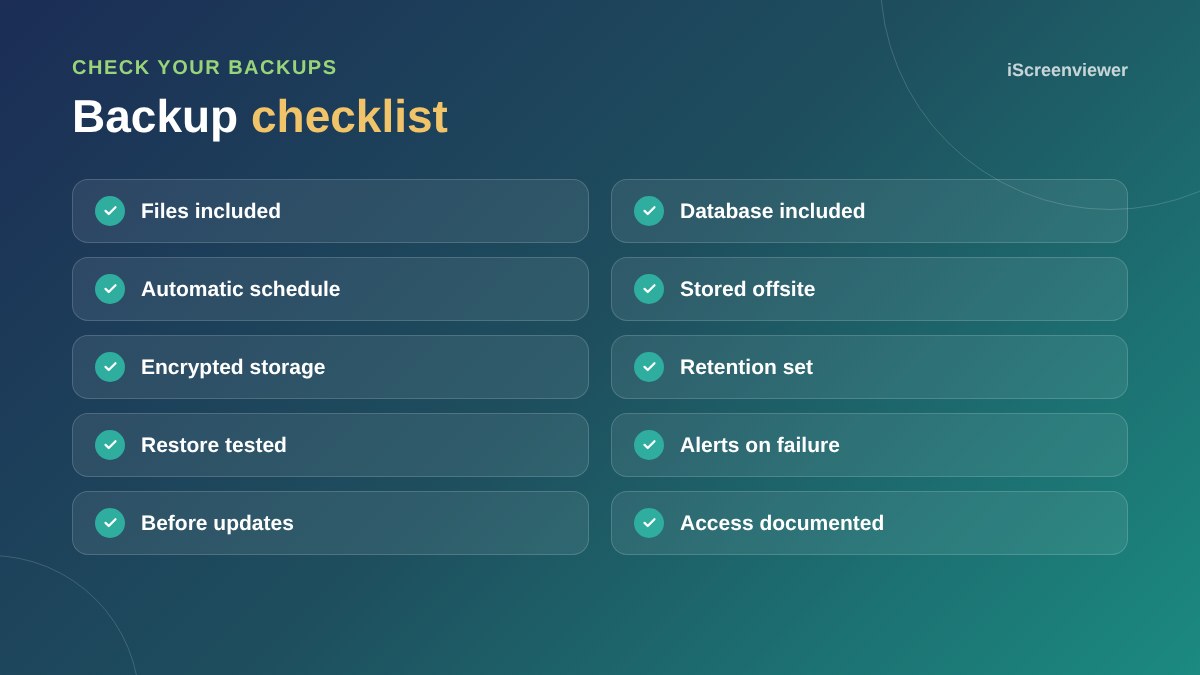
A proper WordPress backup includes both your files and your database, runs automatically on a schedule, is stored somewhere other than your hosting, and has been tested by actually restoring it. For most business sites, that means daily automatic backups kept for at least 30 days in cloud storage, with extra backups before updates or changes.
What to back up
WordPress has two parts: files, including themes, plugins and uploads, and the database, which holds your pages, posts, settings and orders. You need both to restore the site.
Where to store backups
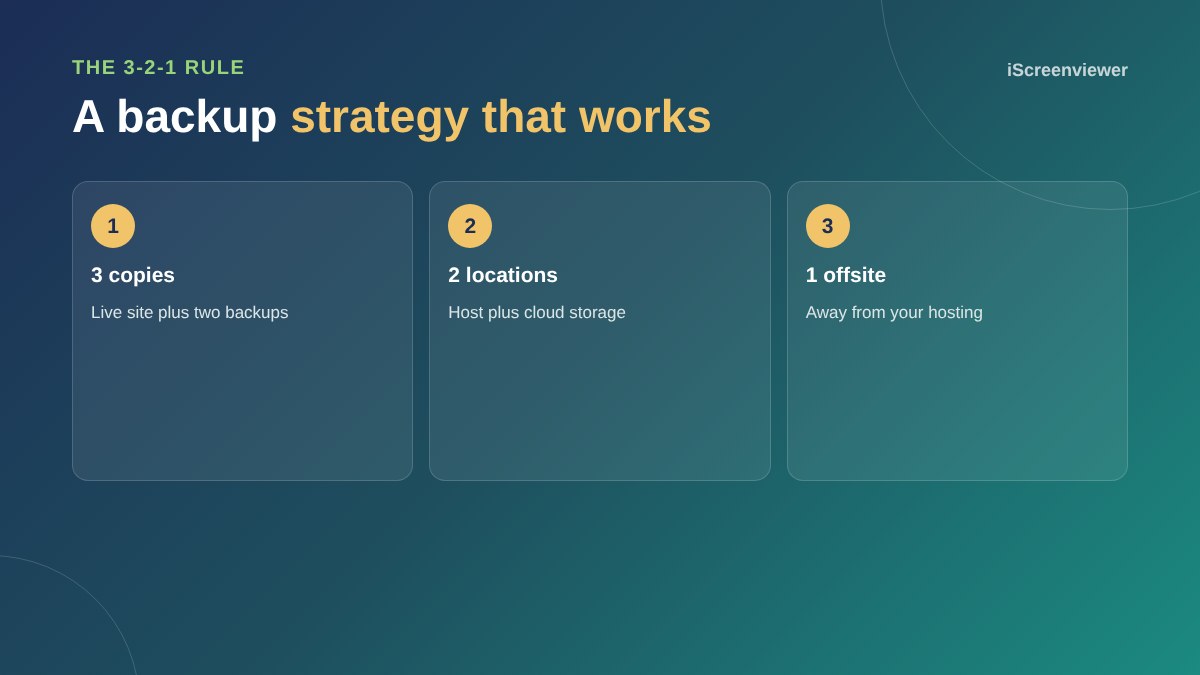
Backups stored only on the same server as your website can be lost if the server fails or is hacked. Keep a copy offsite in cloud storage, following the 3-2-1 rule: three copies, on two types of storage, with one offsite.
How often
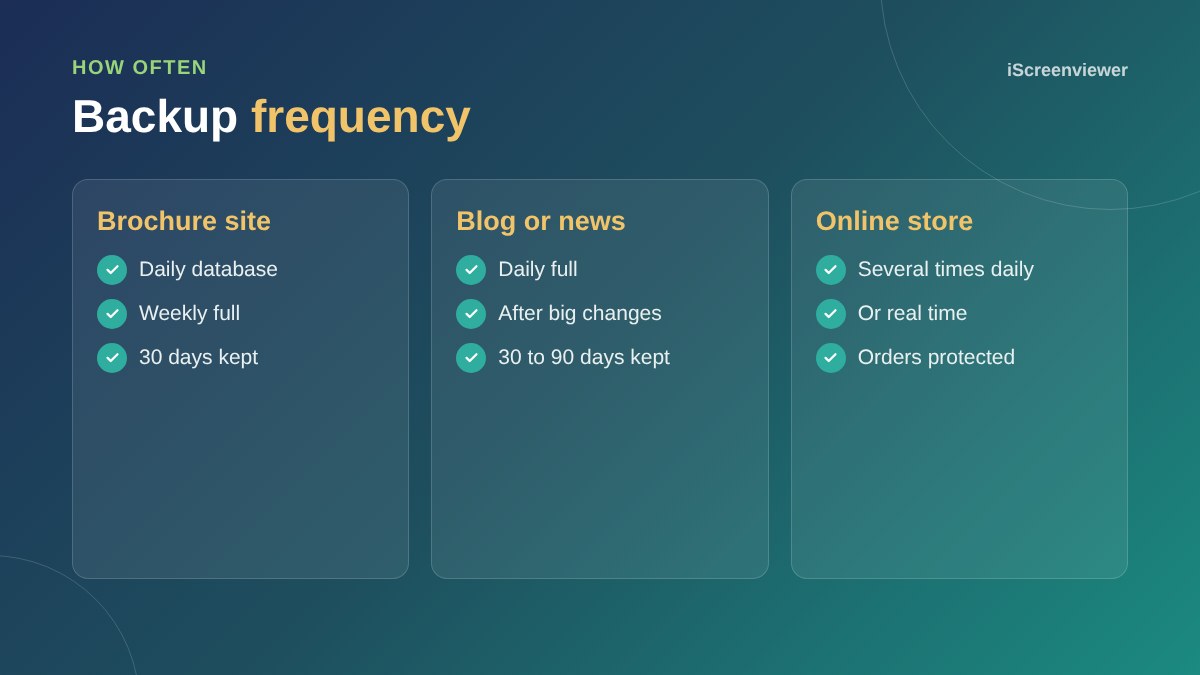
Back up as often as your site changes. A brochure site might need daily backups. An online store taking orders all day needs more frequent or real-time backups so orders are not lost.
Hosting backups are not enough
Many hosts include backups, which is a good start. But check how long they are kept, whether you can restore them yourself and whether they are stored offsite. Have your own copy too.
Test your restores
Restore a backup to a staging site every few months. It is the only way to know your backups work before you need them.
Before you make changes
Always take a fresh backup before updating plugins, changing themes, migrating or making big content changes. See how to migrate a WordPress website.
Backups are one part of a wider security approach. See the WordPress security checklist.
Backup tools
Good options include reputable backup plugins that send copies to cloud storage, hosting backups with offsite copies, and managed services that back up in real time for busy stores. Whatever you use, make sure it covers files and database, runs automatically and alerts you if a backup fails.
Store backups securely
Backups contain your whole site, including customer data for stores. Store them in a private, password-protected location and limit who can access them. Never leave backup files in a public folder on your website, where anyone could download them.
Write down how to restore
Record where backups are stored, how to access them and the steps to restore. In an emergency, this saves valuable time, especially if the person who set up the backups is not available.
Want backups set up for you?
The WordPress Security Hardening and Backups package sets up automatic offsite backups and tests a restore.
Frequently asked questions
How often should I back up WordPress?
Daily for most business sites, and more often for online stores.
Are my host's backups enough?
They are a good start, but keep your own offsite copy and check you can restore them.
What should a WordPress backup include?
All files, including uploads, themes and plugins, and the full database.
Where should I store backups?
Offsite in cloud storage, separate from your hosting.
How do I know my backup works?
Restore it to a staging site and check everything loads.
How long should I keep backups?
At least 30 days, so you can go back to before a problem started.