


Every website connected to the internet is constantly being probed by bots, scanners and automated attacks. Small business websites are no exception. In fact, they're often targeted because attackers assume they have weaker protection.
Login pages are hit with password-guessing attempts, contact forms are flooded with spam, and outdated plugins are scanned for known vulnerabilities. At the same time, customers expect your website to load quickly, wherever they are.
Cloudflare helps with both problems. It sits in front of your website, filtering out malicious traffic and speeding up delivery to genuine visitors.
In this guide, I'll explain why you should use Cloudflare to secure your website, what it actually does, which plan suits most Australian businesses and the common setup mistakes to avoid.
Quick Answer: Why Use Cloudflare?
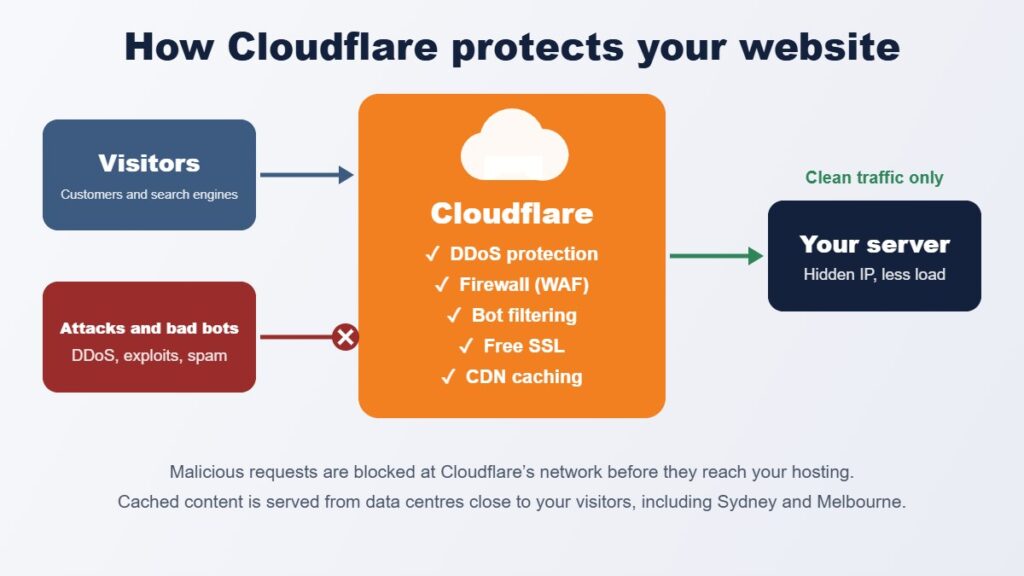
Cloudflare protects your website by routing traffic through its global network before it reaches your server. This lets it block DDoS attacks, malicious bots and common exploits, provide free SSL certificates, hide your server's IP address and cache content closer to your visitors. The free plan covers the essentials for most small business websites, while paid plans add stronger firewall rules and extra performance features.
| Benefit | What it means for your website |
|---|---|
| DDoS protection | Absorbs traffic floods designed to take your site offline |
| Web application firewall | Blocks common attacks such as SQL injection and exploit attempts |
| Bot management | Filters out scrapers, spam bots and password-guessing tools |
| Free SSL | HTTPS for your website, managed and renewed automatically |
| Hidden origin IP | Makes it harder to attack your server directly |
| Global CDN | Faster page loads by caching content closer to visitors |
| Analytics | Visibility of threats, traffic and blocked requests |
What Is Cloudflare?
Cloudflare is a global network that sits between your website's visitors and your web server.
When your domain uses Cloudflare, visitors connect to Cloudflare first. Cloudflare checks each request, blocks anything suspicious and either serves cached content directly or passes the request on to your server.
This is often called a reverse proxy.
Because Cloudflare has data centres in cities around the world, including Sydney, Melbourne, Brisbane, Adelaide and Perth, content can be delivered from a location close to each visitor.
Cloudflare works with almost any website platform, including WordPress, WooCommerce, Magento, Umbraco, Kentico and custom-built websites.
1. Protection From DDoS Attacks
A Distributed Denial of Service (DDoS) attack floods a website with so much traffic that it slows down or goes offline.
Most hosting servers can't absorb a large attack on their own. Cloudflare's network is designed to absorb these traffic floods before they reach your server.
DDoS protection is included on every Cloudflare plan, including the free plan, and isn't limited by the size of the attack.
For an online store, even a few hours offline during a sale or busy period can mean lost revenue and frustrated customers.
2. A Web Application Firewall (WAF)
A web application firewall inspects incoming requests and blocks those that look like attacks.
This includes common threats such as:
- SQL injection attempts.
- Cross-site scripting (XSS).
- Attempts to exploit known vulnerabilities in WordPress, Magento and other platforms.
- Requests to sensitive files such as configuration files and backups.
- Suspicious traffic from known malicious sources.
Cloudflare's free plan includes a free managed ruleset and a limited number of custom rules. Paid plans add Cloudflare's full managed rulesets, which are updated as new vulnerabilities are discovered.
Custom rules let you add your own protection. For example, you can restrict access to your WordPress or Magento admin area to Australian visitors, or block countries you never sell to.
Important: a firewall reduces risk, but it doesn't replace keeping your website software, plugins and extensions updated. Read my guide on how to secure your Magento website for a full platform checklist.
3. Blocking Bad Bots and Spam
A large share of website traffic comes from bots. Some are helpful, such as Google's search crawler. Many are not.
Bad bots can:
- Try thousands of passwords on your login page.
- Submit spam through contact and quote forms.
- Scrape your product prices and content.
- Create fake customer accounts.
- Waste server resources and slow your website down.
Cloudflare identifies and challenges suspicious bots while letting search engines and genuine visitors through. Features such as Bot Fight Mode and Cloudflare Turnstile, a privacy-friendly alternative to CAPTCHA, help reduce automated abuse.
4. Free SSL Certificates and HTTPS
HTTPS encrypts the connection between your visitors and your website. It's essential for online stores, login pages and any form that collects personal details. Browsers also warn visitors when a site isn't secure.
Cloudflare provides free SSL certificates for websites on its network and renews them automatically.
You can also enable settings such as:
- Always Use HTTPS: automatically redirects HTTP visitors to HTTPS.
- HSTS: tells browsers to always use HTTPS for your domain.
- Automatic HTTPS Rewrites: helps fix mixed content warnings.
However, SSL needs to be configured correctly. The SSL mode you choose has a big impact on both security and reliability, which I cover in the setup section below.
5. Hiding Your Server's IP Address
Without a proxy, anyone can look up your domain and find the IP address of the server hosting your website. Attackers can then target that server directly.
When Cloudflare's proxy is enabled, visitors see Cloudflare's IP addresses rather than your server's.
For the best protection, your server can be configured to only accept web traffic from Cloudflare. This stops attackers from bypassing Cloudflare and going straight to your server.
6. Faster Website Performance
Security and speed often go hand in hand with Cloudflare.
Cloudflare caches static files such as images, stylesheets and scripts across its network. Visitors receive those files from a nearby data centre rather than from your server every time.
This can:
- Reduce page load times, particularly for visitors far from your hosting server.
- Lower the load on your server during busy periods.
- Improve Core Web Vitals such as Largest Contentful Paint (LCP).
- Keep your site more responsive during traffic spikes.
Faster websites provide a better experience for customers and support your SEO efforts. Read my Shopify SEO checklist for more on how page speed fits into a wider SEO strategy.
7. Visibility of Threats and Traffic
Cloudflare's dashboard shows how much traffic your website receives, how many threats were blocked and where requests are coming from.
This helps you:
- See whether your site is being targeted.
- Identify unusual traffic spikes.
- Review which firewall rules are blocking requests.
- Spot bots and countries generating suspicious traffic.
For many business owners, it's the first time they can actually see how often their website is under attack.
Cloudflare Plans and Pricing
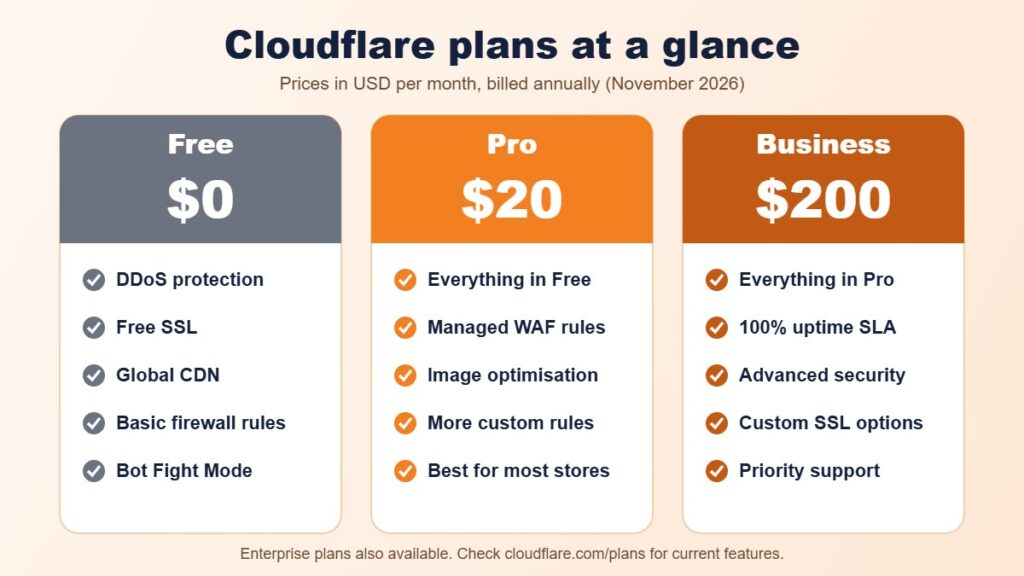
Cloudflare offers several plans. At the time of writing, published pricing is in US dollars:
| Plan | Price (USD) | Best for |
|---|---|---|
| Free | $0 | Small business websites and blogs |
| Pro | $20/month billed annually, or $25 monthly | Professional and eCommerce websites |
| Business | $200/month billed annually, or $250 monthly | Larger online stores and critical websites |
| Enterprise | Custom pricing | Large organisations |
The free plan includes DDoS protection, free SSL, the global CDN, basic firewall rules and bot protection. For many small business websites, it's a strong starting point.
The Pro plan is worth considering for online stores and lead-generating websites. It adds Cloudflare's managed WAF rules and additional performance and image optimisation features.
Check the official Cloudflare plans page for current features and pricing.
How to Set Up Cloudflare Correctly
Cloudflare is straightforward to add to most websites, but a few settings make a big difference.
Step 1: Add Your Domain and Review DNS
Add your domain to Cloudflare and check that every DNS record has been imported correctly, including website, email (MX), SPF, DKIM and verification records.
Missing email records are one of the most common causes of problems after switching to Cloudflare.
Step 2: Choose Which Records Are Proxied
Only website traffic should normally be proxied through Cloudflare (the orange cloud). Mail servers and some other services should remain DNS-only (the grey cloud).
Step 3: Update Your Nameservers
Update your domain's nameservers at your domain registrar to the ones Cloudflare provides. For .com.au domains, this is done through your registrar's control panel.
Step 4: Use Full (Strict) SSL Mode
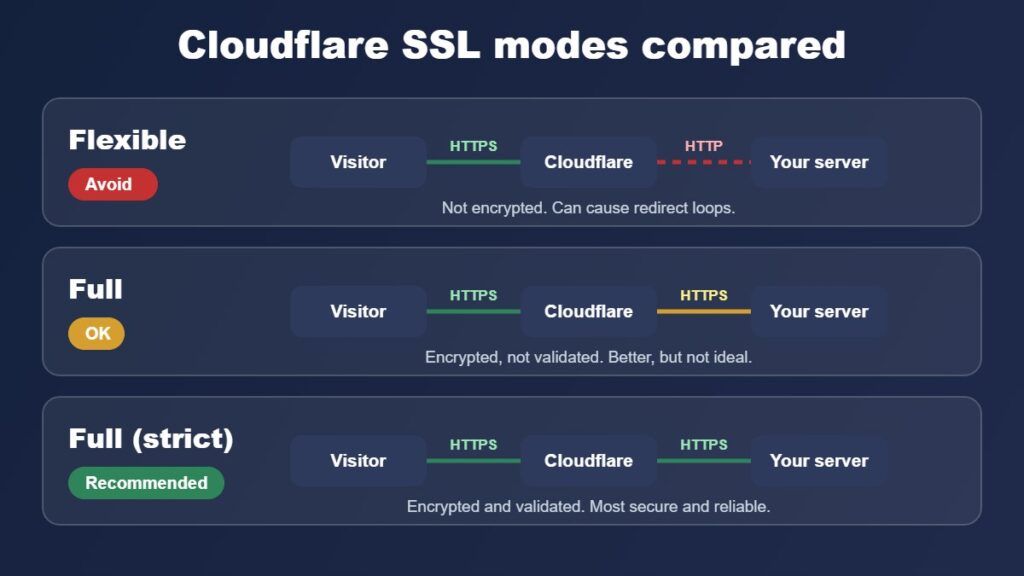
Cloudflare's SSL/TLS settings include several encryption modes:
- Flexible: encrypts traffic between visitors and Cloudflare, but not between Cloudflare and your server.
- Full: encrypts both connections, but doesn't validate your server's certificate.
- Full (strict): encrypts both connections and validates the certificate on your server.
Full (strict) is the recommended setting. Your server needs a valid SSL certificate, which can be a free Cloudflare Origin CA certificate or a standard certificate from your host.
Avoid Flexible mode where possible. As well as leaving part of the connection unencrypted, it commonly causes "too many redirects" errors when the website itself is set to use HTTPS. I've seen WordPress sites go offline after switching their site address to HTTPS while Cloudflare was still in Flexible mode.
Step 5: Enable Key Security Settings
Once your site is working through Cloudflare, review these settings:
- Enable Always Use HTTPS.
- Turn on Bot Fight Mode, then check that forms, payments and integrations still work.
- Add custom firewall rules to protect admin and login pages.
- Enable HSTS once you're confident the whole site works over HTTPS.
- Set up rate limiting on login and form endpoints where your plan allows.
Step 6: Test Everything
After switching, test your homepage, key landing pages, forms, checkout, payment gateways, admin login and email delivery.
Clear any website or plugin caches, and check Google Search Console over the following days for crawl errors.
Common Cloudflare Mistakes to Avoid
Cloudflare is reliable, but these mistakes regularly cause problems:
- Using Flexible SSL on a site that redirects to HTTPS, causing redirect loops.
- Missing DNS records when moving nameservers, which can break email.
- Proxying mail server records, which stops email from working.
- Caching dynamic pages such as carts, checkouts and account areas.
- Blocking legitimate bots or services, such as payment gateway callbacks or search engine crawlers.
- Leaving the origin server open so attackers can bypass Cloudflare.
- Treating Cloudflare as a replacement for updates, rather than an extra layer of protection.
A careful setup and a quick test after any change avoids most of these issues.
Is Cloudflare Right for Every Website?
For most business websites, yes. The free plan adds meaningful protection and performance with very little cost.
Some platforms already include similar protection. For example, Shopify uses Cloudflare as part of its own infrastructure, so Shopify store owners generally don't need to add Cloudflare separately. Read my comparison of Shopify vs WooCommerce to see how hosted and self-hosted platforms differ.
Cloudflare is particularly valuable for:
- WordPress and WooCommerce websites.
- Magento and Adobe Commerce stores.
- Umbraco, Kentico and other self-hosted CMS websites.
- Websites that have been hacked or attacked before.
- Websites that receive a lot of spam or bot traffic.
- Businesses with visitors across Australia and overseas.
If you're planning a rebuild, it's also a good time to put Cloudflare in place. See how much a website redesign costs in Australia.
Frequently Asked Questions About Cloudflare
Is Cloudflare free?
Yes. Cloudflare has a free plan that includes DDoS protection, free SSL, a global CDN, basic firewall rules and bot protection. Paid plans add more advanced security, performance features and support.
Will Cloudflare slow down my website?
Usually the opposite. Cloudflare caches static content close to your visitors, which typically improves load times. Problems mainly occur when caching or security settings are misconfigured.
Does Cloudflare affect SEO?
Cloudflare doesn't harm SEO when it's set up correctly. Faster load times, HTTPS and better uptime can support your search performance. Make sure search engine crawlers aren't blocked by firewall or bot rules.
Will Cloudflare stop my website from being hacked?
It significantly reduces risk by blocking many common attacks, but it isn't a complete solution. You still need to keep your CMS, plugins and extensions updated, use strong passwords and keep backups.
Does Cloudflare affect my email?
Cloudflare doesn't handle your email, but your email depends on the DNS records stored in Cloudflare. Make sure MX, SPF, DKIM and DMARC records are copied correctly and that mail records aren't proxied.
What SSL mode should I use in Cloudflare?
Use Full (strict) wherever possible. It encrypts the whole connection and validates your server's certificate. Avoid Flexible mode, which leaves the connection to your server unencrypted and often causes redirect loops.
Do I need Cloudflare if my host already has a firewall?
Not always, but they work well together. A host firewall protects the server, while Cloudflare blocks threats before they reach it and adds CDN performance and DDoS protection.
Final Thoughts: Why Cloudflare Is Worth Using
Cloudflare gives small and medium-sized businesses access to security and performance features that were once only available to large organisations.
With DDoS protection, a web application firewall, bot filtering, free SSL and a global CDN, it adds a strong layer of protection in front of your website, often at no cost.
The key is setting it up properly. Use Full (strict) SSL, check your DNS records, protect your admin areas and test your website after every change.
Combined with regular updates and backups, Cloudflare can make your website safer, faster and more reliable.
Need Help Setting Up Cloudflare?
At iScreenviewer, I help Australian businesses secure, speed up and maintain their websites.
I can set up and configure Cloudflare for WordPress, WooCommerce, Magento, Umbraco and other platforms, without disrupting your website or email.
My Website Security Services
- Cloudflare setup and configuration.
- SSL and HTTPS migration.
- Firewall rules and bot protection.
- Website security audits.
- Malware removal and recovery.
- CMS, plugin and extension updates.
- Website speed optimisation.
- Ongoing maintenance and support.
You work directly with the developer completing the work, with clear communication throughout.
Explore iScreenviewer Website Services
Contact iScreenviewer About Cloudflare Setup
Fixed-Price Packages That Can Help
Prefer to have it done for you? These fixed-price packages cover the work in this guide, with no hourly billing:
- WordPress Security Hardening and Backups: A$349
- Malware Cleanup: Entire Site: A$499
- Website Hosting: 1 Website, 6 or 12 Months: A$180
Not sure which one you need? Book a free website consultation or request a custom quote.